
Find your way around Tamaam
Use the workspace rail, search, account menu and linked records to find the right place.
On this page
About the current product preview
These guides describe Tamaam’s current product preview. Website reading, service connections and team invitations are demonstrated in the preview; live delivery and syncing are not available there.
Start with the workspace rail
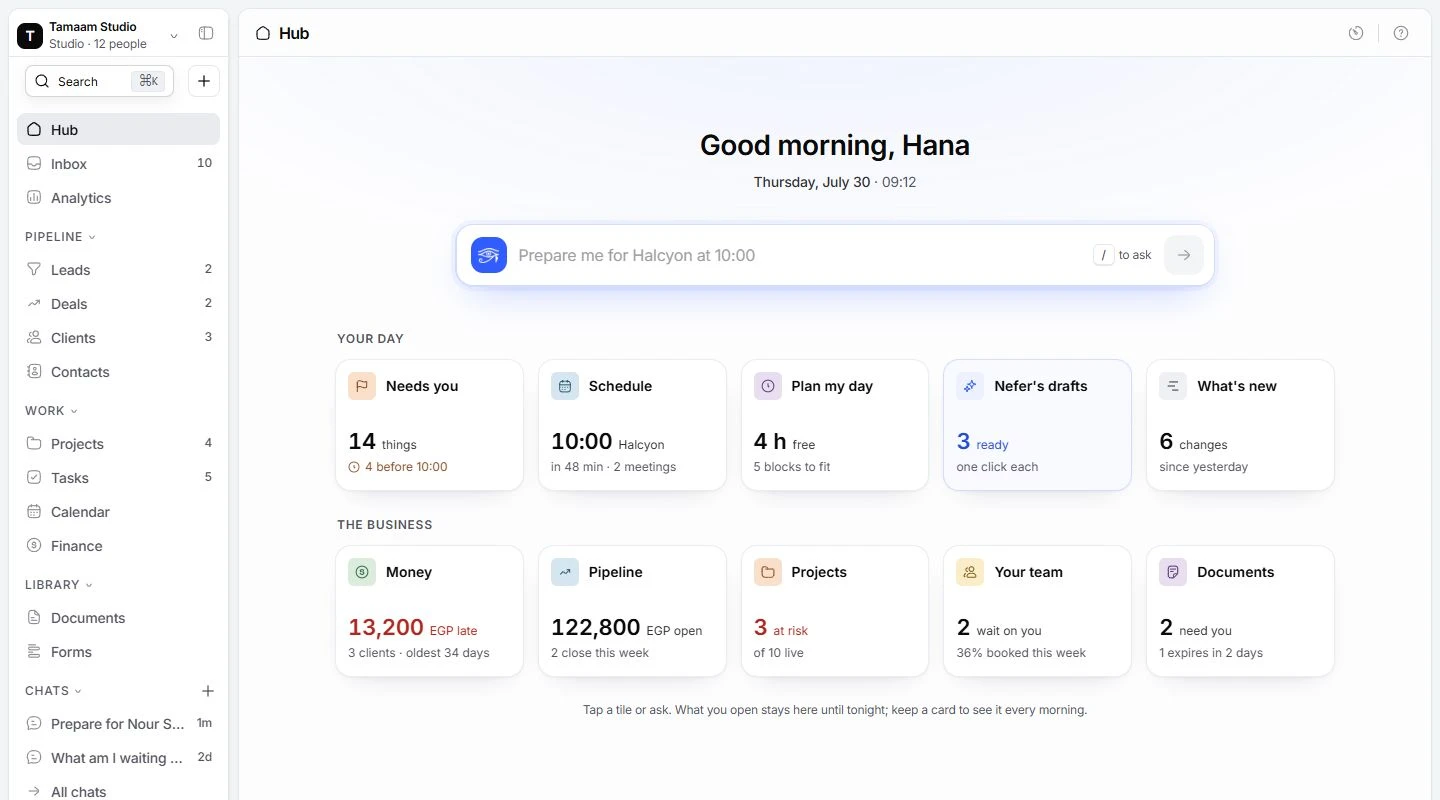
The rail is the navigation at the side of Tamaam. Hub and Inbox sit near the top. Pipeline groups Leads, Deals, Clients and Contacts. Work groups Projects, Tasks, Calendar and Finance. Library holds Documents and Forms. Chats holds your conversations with Nefer.
Collapse or expand a group using its heading. Use Collapse navigation when you need more room for the page, then expand it again to move elsewhere.
Find a record and follow its context
- Open Search.
Use Search near the top of the rail, or press Command K on Mac / Control K on Windows.
- Choose the record you need.
Read its name and type before opening it. A client, project and task may share similar wording.
- Follow a linked record.
Open the named client, project or task from the current record. Some links open a preview or inspector; others open the record’s full page.
Open account and workspace settings
Open the account control at the top of the rail. Settings opens the common settings area; Invite members opens the team invitation sheet when available. Your own profile and notifications live under You. Company details and member management live under Workspace.
A module’s own settings stay in that module. For example, mailbox settings belong to Inbox, and calendar settings belong to Calendar.
Get help without starting over
The page’s Help menu has a Getting started entry. Use it to return to setup even after the setup pill leaves the rail. Ask Nefer opens a conversation about the work; check the records behind her answer before acting.
Reviewed by the Tamaam product team against the Block 5 product preview. If a screen or step changes, tell us below.
Was this article helpful?
Need help with your workspace?
A support request lets the team reply to you directly.
Get help with this article