
Invite your team
Choose who joins, what they can open and whether they need client-mail access.
On this page
About the current product preview
These guides describe Tamaam’s current product preview. Website reading, service connections and team invitations are demonstrated in the preview; live delivery and syncing are not available there.
Before you invite someone
Check that you are in the correct workspace. Invitations and member management depend on your access and the workspace’s plan. The current preview demonstrates invitations locally; it does not send an invitation email.
- Choose a role based on the work the person needs to do.
- Give client-mail access only to the people who need to read or answer it.
- Check Plan and seats if the invitation is blocked by the workspace’s available seats.
Prepare an invitation
- Open the invitation sheet.
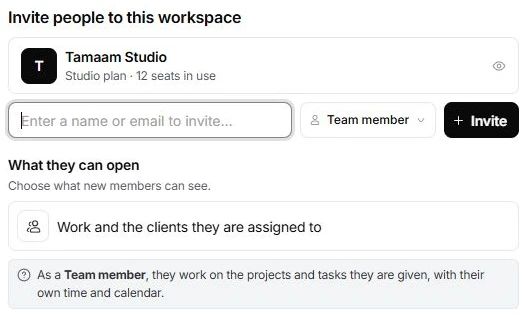
Open the account menu at the top of the workspace rail and choose Invite members. Alternatively, open Settings → Members and choose Invite people.
- Enter the person’s email.
Use the Name or email address field. Check the address before continuing.
- Choose the role.
Open the role control, initially Team member. Read the explanation beneath it to check what the person can open.
- Review access and choose Invite.
Check What they can open. In the current preview, this updates the local invitation state; it does not deliver an email.
Roles and client mail are separate decisions
An Owner manages the workspace itself. Admin, Account manager, Sales, Project lead, Team member, Finance and Guest describe different kinds of work. Use the Roles list in Settings → Members to read the current descriptions instead of assuming that every teammate has the same access.
Client-mail access may differ between two people with the same role. Review each person’s Client mail setting in Members. A teammate who works on delivery does not automatically need access to every shared conversation.
If an invitation does not work
Check the address, invitation state and available seats in Members. Ask an owner if you cannot see invitation controls. A preview invitation will not arrive in an email inbox; use the current preview only to review the experience. For a live invitation problem, include the workspace name and what the person sees when contacting support, without sharing an invitation code or password.
Reviewed by the Tamaam product team against the Block 5 product preview. If a screen or step changes, tell us below.
Was this article helpful?
Need help with your workspace?
A support request lets the team reply to you directly.
Get help with this article