
Finish your setup later
Return to skipped steps, understand their status and continue without repeating completed setup.
On this page
About the current product preview
These guides describe Tamaam’s current product preview. Website reading, service connections and team invitations are demonstrated in the preview; live delivery and syncing are not available there.
Return to Getting started
- Open the setup list.
Choose Getting started near the foot of the workspace rail. If that pill is no longer shown, open the page’s Help menu and choose Getting started.
- Read the next step.
The large next-step area explains what is ready and why it matters. Open a group to see its other steps.
- Open the step’s action.
Use its named action, such as Add your brand, Invite or Check them. Some actions open a dialog; others take you to the owning page.
- Return to the list.
When a step takes you to another page, use the Getting started return bar. Completed work is read from the workspace, so you do not need to tick it again.
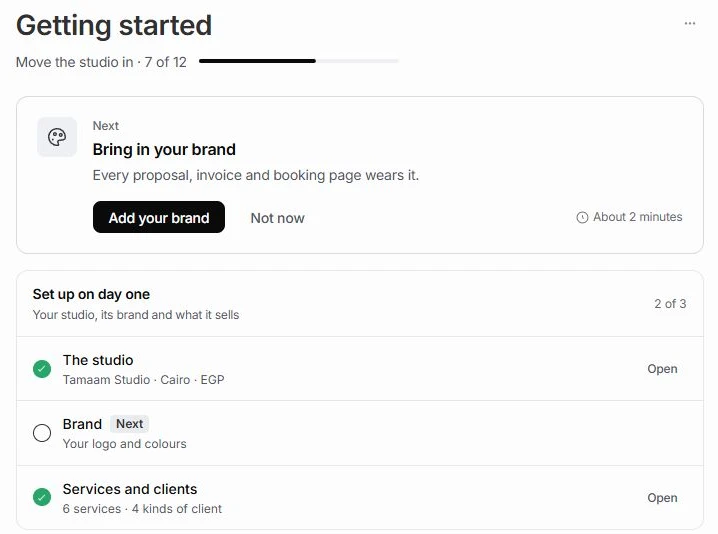
Understand a step’s status
- Done: the required information or record already exists.
- Ready or not done yet: the step can be completed now.
- Running: background work is in progress; review appears when it is ready.
- Waiting: the step has been handed to someone else.
- Not now: the step has been set aside, not deleted.
- Not yet possible: another step must happen first, such as connecting a mailbox before reviewing its findings.
Where each workspace setup action takes you
Owners have twelve counted steps. Use the action beside the step; the same completed information can come from onboarding or the page that owns it. Connecting and delivery remain local demonstrations in the current preview.
| Setup step | Action and destination | What to check |
|---|---|---|
| The studio | Open → Settings / General | Name, city and currency are present. |
| Brand | Add your brand → Settings / Branding | A logo or at least one color is present. |
| Services and clients | Tell Nefer → Settings / Nefer | At least one service has been recorded in the Business brain. |
| The studio’s mailbox | Connect Gmail or Outlook or another → connection dialog | The preview mailbox shows connected. A running read counts toward setup; it has not connected a live account. |
| Review what Nefer found | Review → findings dialog | Decide which suggested clients, leads and contacts to add. This waits for the mailbox read; nothing left to decide means done. |
| Your calendar | Connect your calendar → connection dialog | The preview calendar shows connected; live syncing has not started. |
| Invite your team | Invite → invitation sheet | A local invitation exists. Follow Invite your team to review roles and access; the preview does not send email. |
| Your first client | Add a client → Clients / new client | At least one client exists. Import from Zoho, ClickUp or a sheet opens the import alternative. |
| Your first project | Start a project → Projects / new project | At least one project exists. The same import alternative is available. |
| How clients pay you | Connect → Stripe or PayPal dialog | A provider is selected in the preview. No live payment account is connected. |
| How Nefer’s drafts go out | Choose → draft handling dialog | Choose You send them or She sends when you approve. She never sends on her own. |
| Nefer’s settings | Check them → Settings / Nefer | Opening her settings from this step records that you checked them. Review the actual limits before returning. |
Finish the optional setup when you need it
The seven steps under When you have a minute do not change the twelve-step total. Some become available only after their prerequisite is complete.
| Setup step | Action and destination | What to check |
|---|---|---|
| Working hours | Change → Calendar / hours settings | Set the hours used by booking pages and Find a time. |
| Your booking page | Set up → Calendar / booking pages | Create the page after connecting a calendar. Preview publishing is not a live public booking service. |
| Who reads client mail | Choose → Settings / Members | Invite the team first, then review client-mail access person by person. |
| A shared inbox | Make one → Inbox / shared inbox settings | Prepare the shared inbox for the people handling those conversations. |
| Nefer’s voice | Add words → Settings / Branding | Add the voice words Nefer should use for the studio. |
| Who you serve | Fill in → Settings / Business brain | Describe a good client and the criteria used to assess leads. |
| What Nefer prepared | Review → prepared kit dialog | Add services first. Review and keep the useful items; leaving items out is a valid decision. |
Set a step aside or ask a teammate
If no action waits on you, the page may say Nothing waits on you now. That can mean the remaining steps are handed off or set aside; it does not necessarily mean every setup step is done.
- Open the step’s details.
Select its row to see why it matters and its available actions. Ready steps can show Not now, an import alternative or Ask someone. Not every step supports a handoff.
- Leave a step for later.
Choose Not now. The step stays in its group with the status Not now. Choose Bring back on that row to make it ready again.
- Hand it to a teammate.
Where Ask someone appears, choose it, select the responsible teammate and confirm the handoff. The step changes to Waiting on that person and appears under Asked of you in their own setup list. This is local preview state, not a delivered message.
- Take the work back if necessary.
Choose Do it myself on a waiting step. It removes the handoff and makes the step yours again; it does not complete the setup action.
If you joined as a teammate
Your list starts with your own setup and adds any work handed to you. It does not repeat the owner’s twelve company steps. Shared inboxes appear when the team has given you access.
| Setup step | Action and destination | What to check |
|---|---|---|
| Your photo and title | Open → Settings / Profile | Your profile identifies you to the team. The title determines this step’s completion in the current preview. |
| Your calendar | Connect your calendar → connection dialog | Prepare your personal calendar connection. The preview does not start live syncing. |
| Your shared inboxes | Open → Inbox | Review the inboxes the owner gave you. Ask them to check access if one is missing. |
| What reaches you | Choose → Settings / Notifications | Review how notifications should reach you. |
| Asked of you | Use the named action beside the assigned step | Complete that setup action in its owning page or dialog. The owner’s list reads the same completed information. |
If a step still looks incomplete
Open the owning page and check its required details. For example, The studio reads the name, city and currency; Brand reads whether a logo or color is present. Reviewing Nefer’s settings is different from changing her settings.
If the required information exists but the step still looks wrong, contact support with the step name, page and expected result. Do not repeatedly recreate clients, projects or invitations to change the progress count.
Reviewed by the Tamaam product team against the Block 5 product preview. If a screen or step changes, tell us below.
Was this article helpful?
Need help with your workspace?
A support request lets the team reply to you directly.
Get help with this article