
Set up your team
Prepare a shared workspace, give people the right access and make the first handoff clear.
Settings → Members → Connections → Projects → Tasks
Before you start
- Use the workspace owner’s account for shared settings and invitations.
- Have the company details, brand assets and intended team roles ready.
- Choose one real piece of work to use for the team’s first walkthrough.
What you’ll have at the end
Your team can enter the right workspace, find its work and understand who is responsible for the next action.
Follow the workflow
Prepare the company workspace
Who takes this step: Workspace owner
Open Settings → General and review the company name, legal details, currency, time zone and date conventions. Use the existing company workspace when it is already set up; teammates should join it through their invitations.
Open Business brain and review the services, ideal-client criteria, operating preferences and voice the team wants Nefer to work from. Keep commercial defaults consistent with how you actually sell and deliver work.
Before moving on
The company details and shared time conventions are correct.
Review the client-facing identity
Who takes this step: Workspace owner
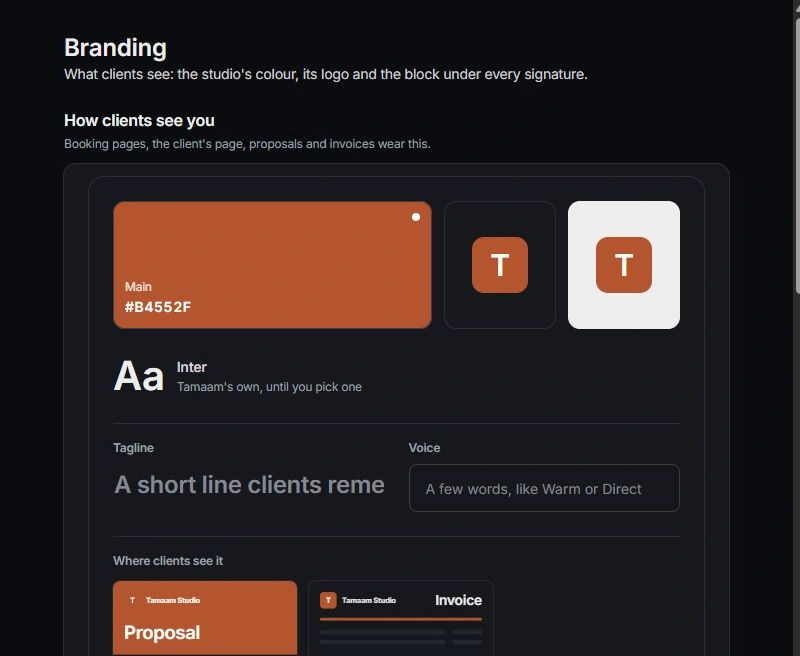
Open Settings → Branding. Review the logo, accent color and shared signature block. Then inspect a document, form or booking-page preview to check the identity in use.
Check each surface’s own design settings when it keeps local choices. A good first review includes a computer and phone preview, readable text and the company name clients expect.
Before moving on
A representative client-facing preview is readable and carries the intended identity.
Invite people with a clear role
Who takes this step: Workspace owner or authorized admin
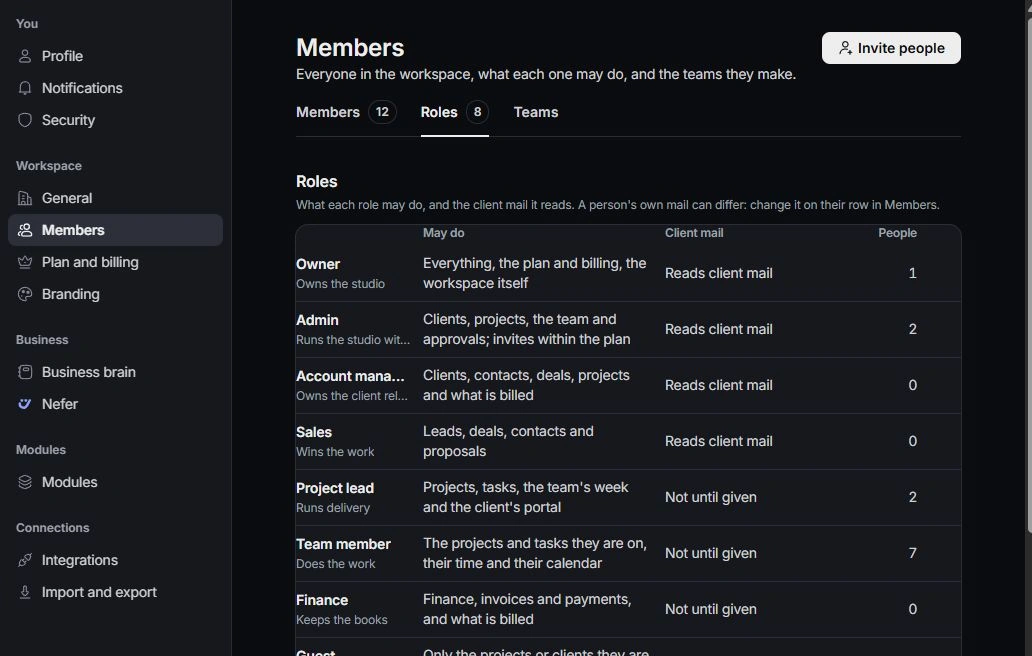
Open Settings → Members and choose Invite people. Use the intended work address, choose the role and read What they can open. Review available seats and pending invitations before sending another invitation to the same person.
Decide client-mail access separately from the role. Delivery teammates may need projects and tasks without access to every shared conversation. Ask each person to join with the address you invited.
Before moving on
The teammate has joined the intended workspace and can open the work their role requires.
Review the shared mailbox and calendars
Who takes this step: Workspace owner; each calendar owner
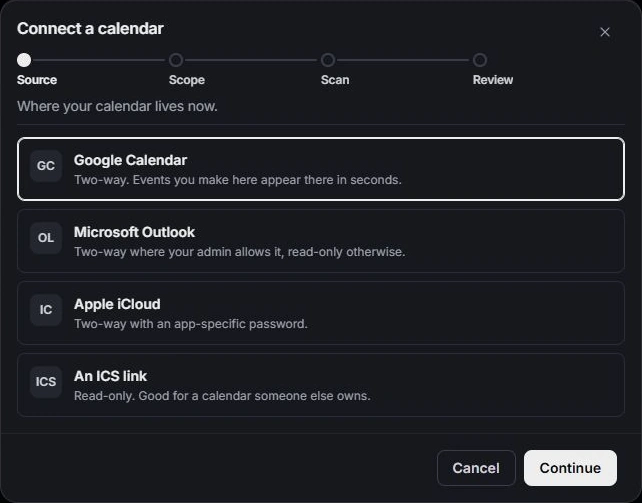
Review Settings → Integrations, then use Inbox and Calendar for their detailed connection controls. Check the intended source account, requested scope, reading range and synchronization preferences before completing a connection.
Afterward, check the owning module’s connection state. Review calendar visibility and the destination for new meetings. A missing item can be hidden by a view or calendar selection, so check those before reconnecting.
Before moving on
The intended sources and visibility are selected, and teammates’ mail access has been reviewed.
Let each teammate finish personal setup
Who takes this step: Each teammate
Open Settings → Profile to review job title, time zone, week start and weekly capacity. Then open Notifications and choose the events and delivery channels that matter to your work.
Return to Getting started for any skipped personal setup. A job title also affects team grouping; a personal preference does not replace the owner’s shared workspace settings.
Before moving on
The teammate’s time preferences and notifications fit their working day.
Assign the first piece of work
Who takes this step: Team lead and assignee
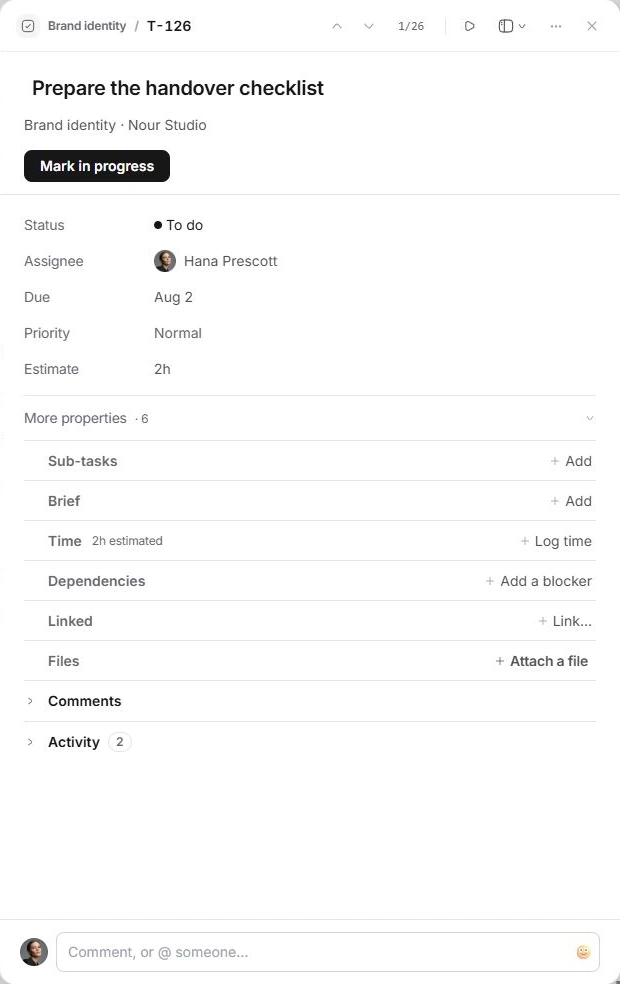
Open a project or task the teammate will work on. Confirm its client, owner, assignee, due date and current status. Leave the next action and useful context on the record, then ask the teammate to open it from their own account.
Walk through the linked client or project and the relevant conversation where access permits. Use Hub to find the day’s work and Search to return to the record later.
Before moving on
The assignee can open the record and explain the next action and due date.
Check the complete handoff
- People have joined the correct workspace with appropriate roles and mail access.
- Shared company details and personal time preferences have been checked.
- The first task has an assignee, context and a date.
If the workflow gets stuck
Someone cannot join or see work
Check the invitation address and state, then membership, role, record assignment and client-mail access. Do not create a second workspace to solve a joining problem.
A teammate cannot access a moduleA connected source looks empty
Check the module’s current view, date range, calendar visibility and synchronization state before reconnecting.
Review connection statusFor help with your workspace, contact the team with the workflow name, the step and what happened.
Contact support