
Manage project files and links
Keep attachments, outside resources and Documents records together with explicit audiences.
On this page
Add and review files
- Open Files → Add file.
Choose the appropriate file and review its name and context.
- Check Client or Internal.
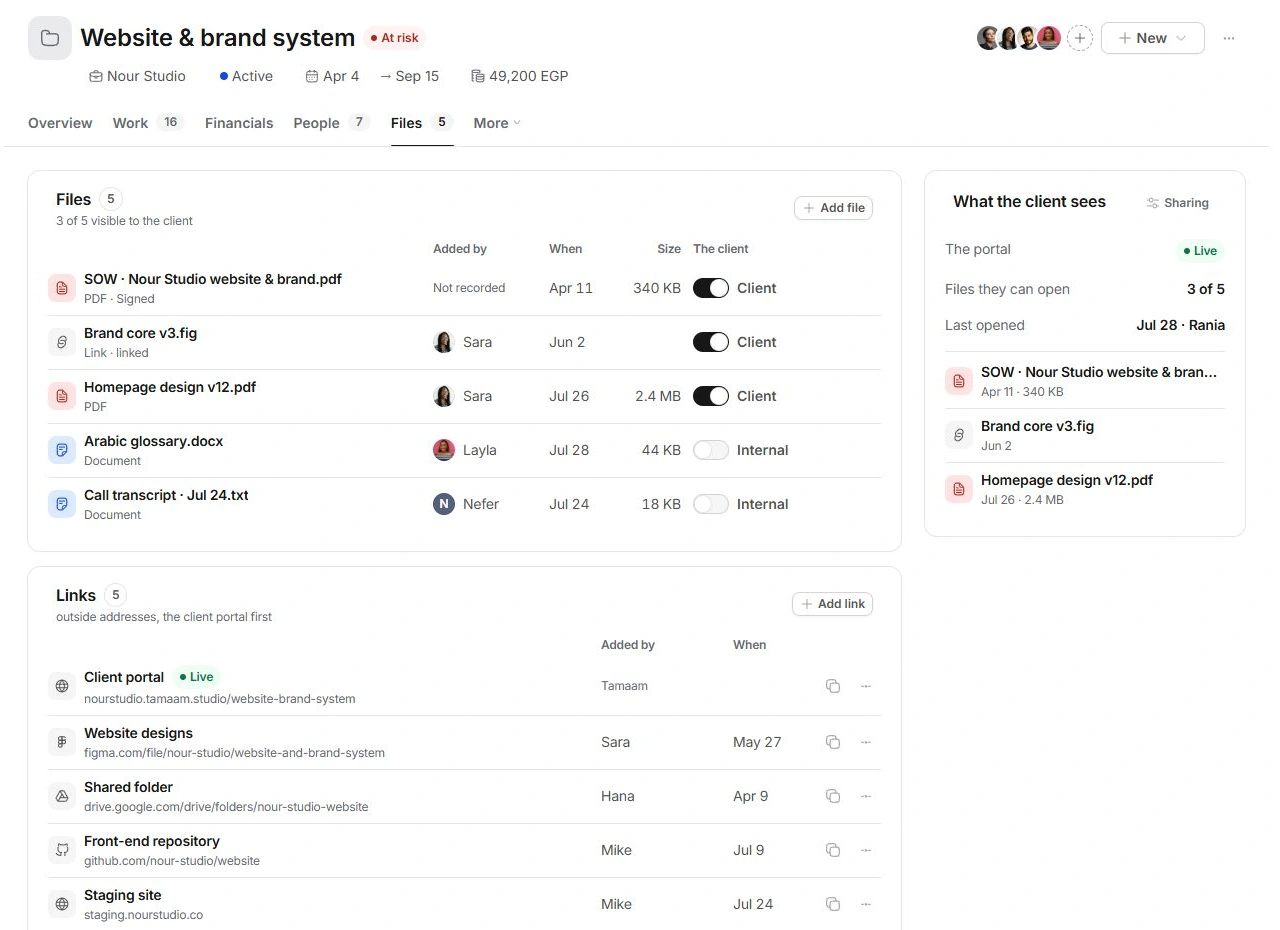
New attachments start internal. Change the audience deliberately and inspect what the portal shows.
- Pin frequent references.
Use the file or document's pin control to place it in the project's sidebar.
- Remove an unwanted attachment link.
Use its Remove control and review the result. Use Undo if you chose the wrong item.
Keep outside addresses useful
Links holds the portal and external resources such as design files, shared folders and repositories. Use Add link, give it a recognisable title and check the address. The link's More menu supports maintenance. A copied URL does not change access at the outside service.
Open the document where it lives
Documents lists records made in the Documents module, with owner, created date, state and value. Use New document or open an existing record. A signed SOW and an uploaded PDF are different records; read the document's status before reporting acceptance.
Check the client-facing selection
What the client sees summarises portal status and visible files. Compare its count and list against each attachment's audience and Sharing settings. If a resource is missing, check linked Documents and the outside service's access before uploading duplicate copies.
Need a clarification? Tell us what you were trying to do below.
Was this article helpful?
Need help with your workspace?
A support request lets the team reply to you directly.
Get help with this article