
Reschedule, repeat or cancel a meeting
Change time deliberately, choose the scope of a series edit and distinguish cancellation from deletion.
On this page
Reschedule a writable meeting
The Calendar grid also supports moving and resizing eligible events. Dragging is a time change, not just a visual rearrangement. Review the resulting interval.
- Open the event.
Confirm its title, date and source. Read-only source events must be changed where they live.
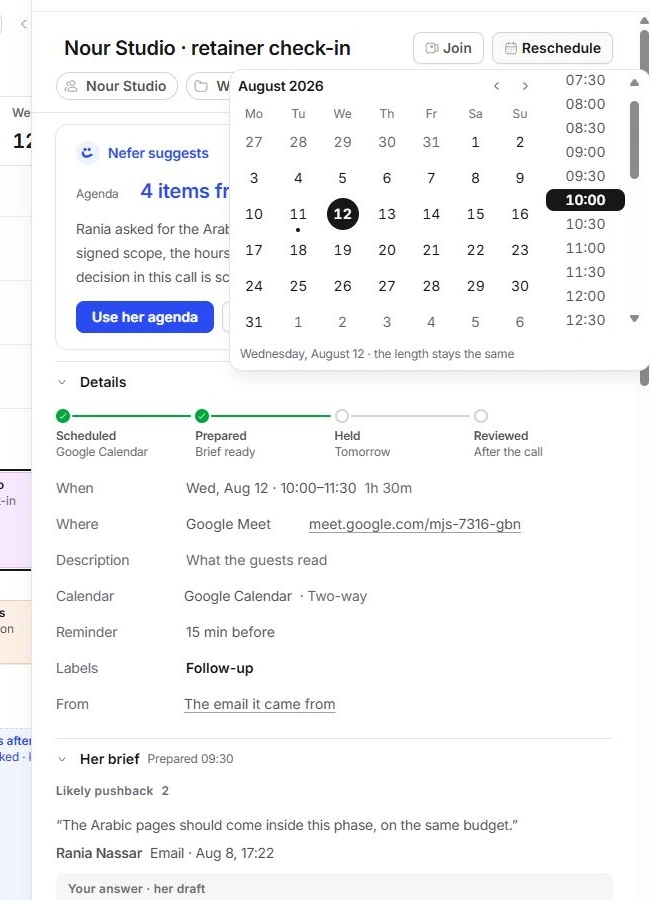
- Choose Reschedule or When.
Pick the new date and start time. The reschedule picker keeps the meeting’s duration.
- Review clashes.
Check the new period against other meetings and focus blocks. Read any warning rather than assuming the move is conflict-free.
- Check the result.
Confirm the updated When value. Use Undo if the move was unintended.
Choose repeat behaviour and scope
New meeting offers Repeats, starting from Does not repeat. Existing repeating events expose their repeat information and series-edit choices.
When the interface asks for the scope, choose the individual occurrence or the relevant series option deliberately. Changing the current occurrence is different from changing future occurrences. Recheck the chosen instance and the next one after the edit.
Cancel or delete the right thing
The meeting’s More actions can offer cancellation or deletion depending on its type and state. Read the confirmation: a client cancellation can prepare a note and alternative times in Inbox; it does not silently send that message.
Deleting an internal block removes calendar time. Cancelling a booked call changes its outcome and may preserve booking history. Do not delete a booking page to cancel one person’s call.
Recover a mistaken change
- Use Undo while its notice is available.
- Check the series scope before repeating a correction.
- Review any prepared communication in Inbox separately.
- Keep the original source calendar in mind for read-only events and externally managed series.
Need a clarification? Tell us what you were trying to do below.
Was this article helpful?
Need help with your workspace?
A support request lets the team reply to you directly.
Get help with this article