
Configure Inbox preferences and reply targets
Set readable layouts, useful alerts, reply timing and the identity shown on messages.
On this page
Choose your reading layout
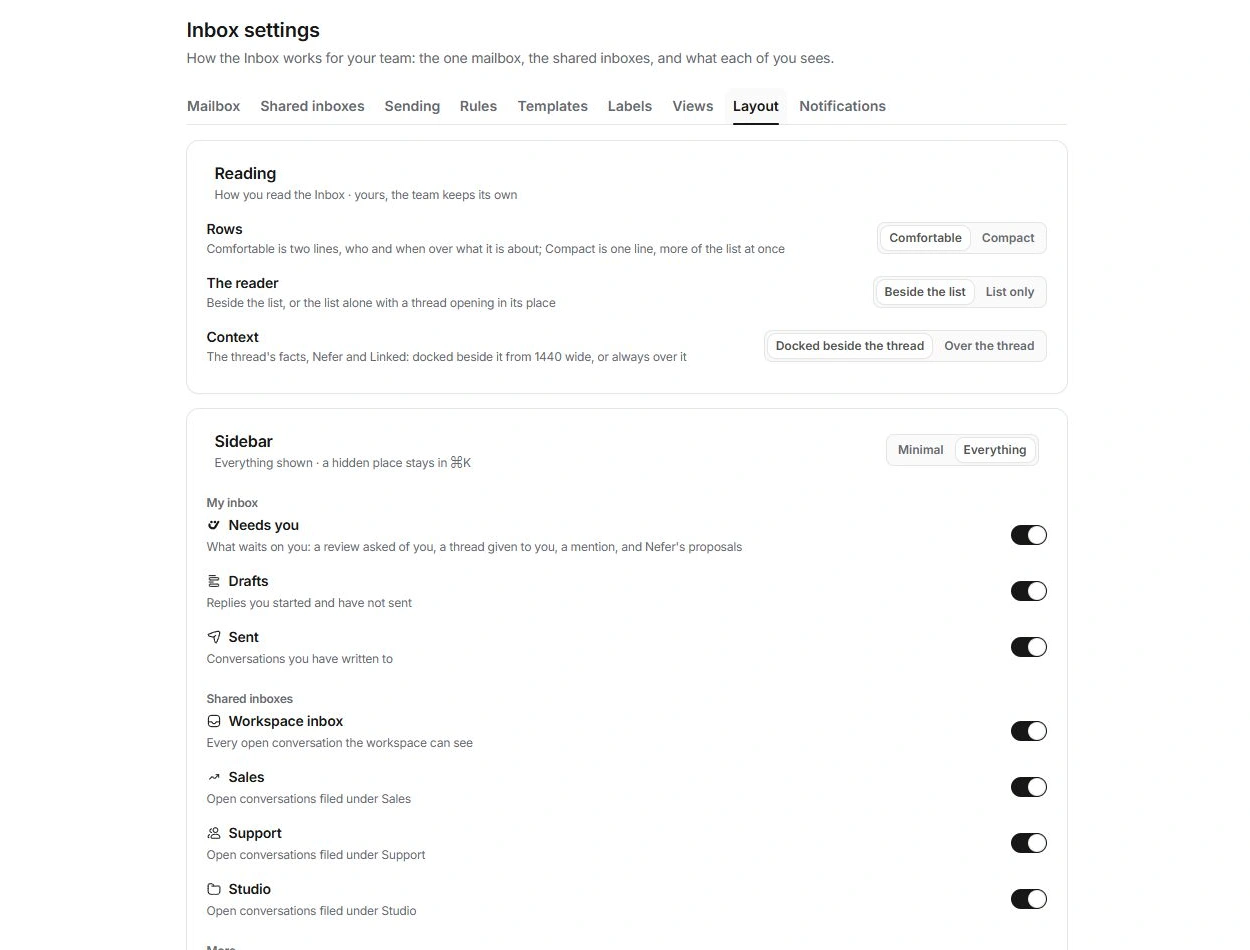
Open Inbox settings → Layout. Rows offers Comfortable and Compact; The reader offers Beside the list and List only; Context can dock beside the thread where space allows or open over it.
Sidebar offers Minimal and Everything, with individual visibility switches for destinations. Hiding a destination changes your navigation, not the conversations or other people’s membership.
Set a useful reply target
- Open Shared inboxes in Inbox settings.
Find Reply targets beneath the inbox list.
- Review Working hours.
Targets count the studio’s working hours from Calendar. Change in the Calendar opens the owning settings.
- Choose the target for each inbox.
Workspace inbox and each shared inbox have their own setting; Off removes that target.
- Read the queue’s time cues.
Time left and late labels describe the response target. Check the thread’s exact due information before escalating.
Review the sending identity and signature
Sending lists You send as, Your title, Your phone and The studio’s block. Personal details appear in your signature; the studio block is shared. Review the signature shown in the composer after an edit.
Track opens and clicks has a default here and can be changed for an individual message in Send options. An open is a signal rather than proof that a person read the response; mail apps can load content automatically.
Choose which alerts matter
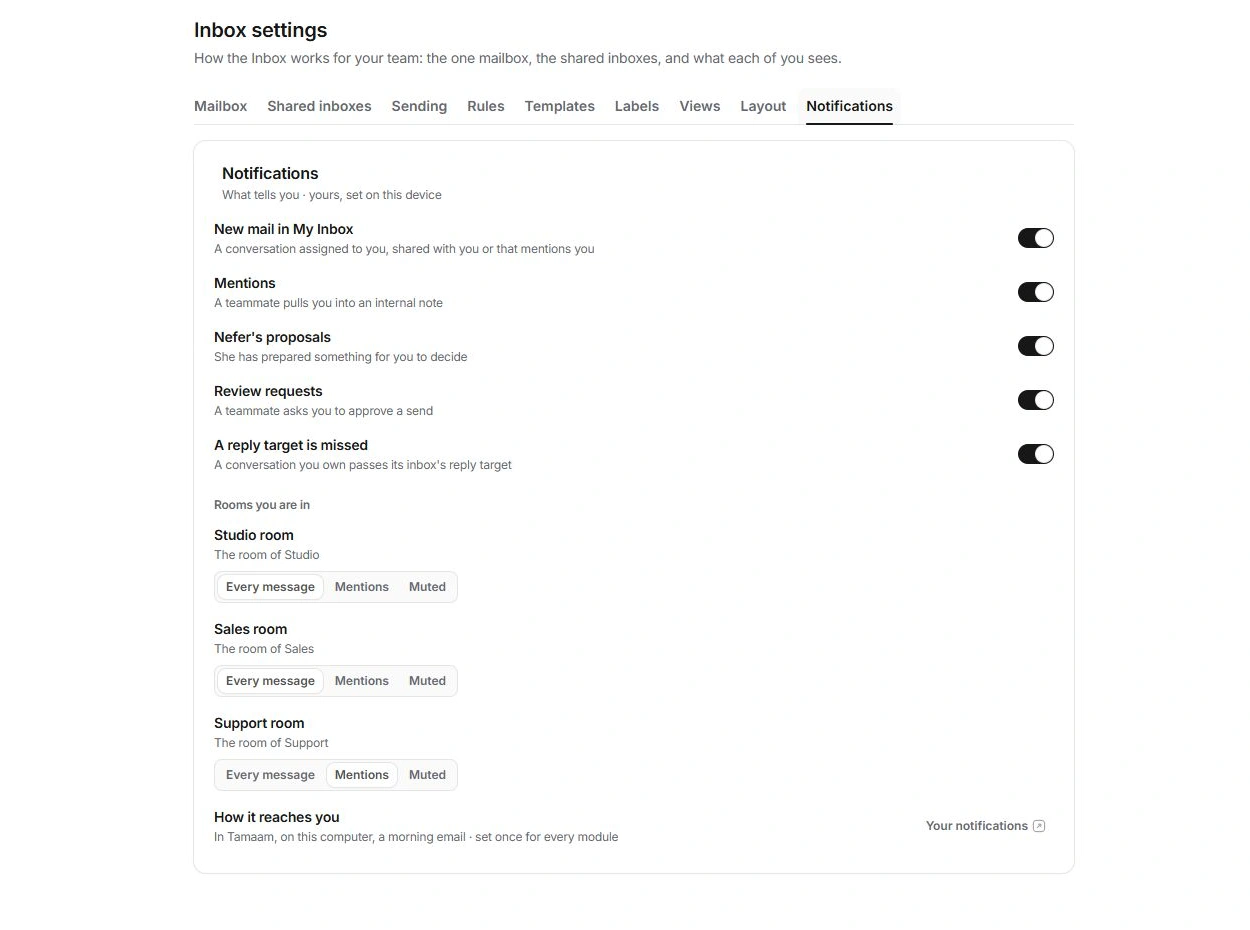
Notifications controls Inbox event alerts. Room settings separately offer Every message, Mentions or Muted. Your notifications opens the account-level delivery preferences used across Tamaam.
Adjust one source of noise at a time and keep important handover or review alerts available. A muted notification does not remove work from Needs you or transfer its ownership.
Need a clarification? Tell us what you were trying to do below.
Was this article helpful?
Need help with your workspace?
A support request lets the team reply to you directly.
Get help with this article