
Organise conversations with labels
Apply a consistent vocabulary without confusing labels with state or ownership.
On this page
Label the conversation
- Open More actions → Labels….
The picker shows the available labels.
- Choose the relevant label.
Check the label chips on the conversation. Apply only labels that help the team find or act on work.
- Create a label if the vocabulary is missing.
Enter its name and choose color and Personal or Workspace scope.
- Use the sidebar or filters to find labelled work.
Check that the selected inbox and folder also contain the conversations you expect.
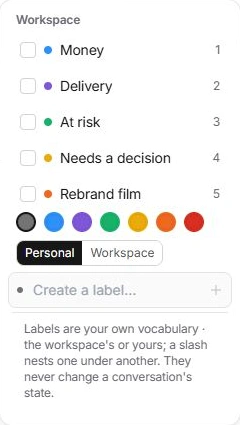
Use names and nesting deliberately
A slash nests a label under another. Keep names descriptive and avoid almost-identical labels for the same purpose. Personal labels are visible only to you; workspace labels establish a shared vocabulary.
A label never changes the conversation’s state. Needs reply, Waiting and Done remain separate decisions.
Manage the vocabulary in settings
Inbox settings → Labels lets you rename, recolor and inspect the threads wearing a label. More actions offers scope changes, Merge into… and deletion. Renaming to an existing name can offer a merge rather than create a duplicate.
Merge moves the old label’s use into the destination. Delete label removes its categorisation; it does not delete the labelled conversations.
Check the result after a change
Open the label’s thread count to review affected work. If a shared view suddenly looks empty, check whether it used a renamed, merged or removed label. Coordinate workspace vocabulary changes with the people who use those views.
Need a clarification? Tell us what you were trying to do below.
Was this article helpful?
Need help with your workspace?
A support request lets the team reply to you directly.
Get help with this article