
Create or edit a meeting
Set timing, location, people and related work, then review the invitation and internal notes separately.
On this page
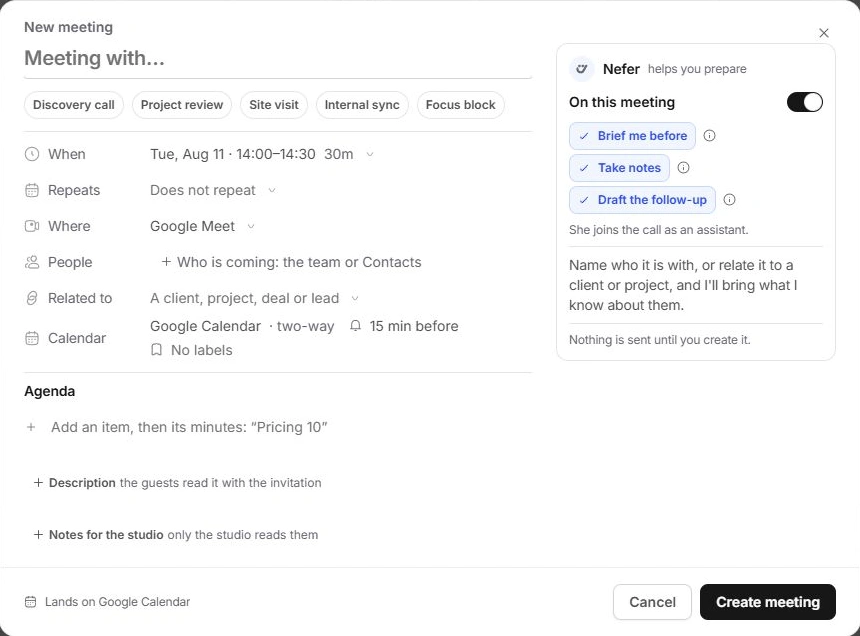
Create a meeting
- Choose New meeting.
Use the main action in Calendar. A free time in the grid can also start the creation flow.
- Enter Title and choose a starting kind.
Discovery call, Project review, Site visit and Internal sync can fill useful starting settings. Recheck them rather than assuming every default fits.
- Set When and Repeats.
Choose the date, start and duration. Use the all-day option for a day-long event when offered.
- Choose Where, People and Related to.
Pick the meeting platform or in-person location, choose workspace people or Contacts, and link the client, project, deal or lead.
- Review Calendar, reminder and labels.
Choose a writable calendar. The source controls where the event belongs and which provider can supply its meeting link.
- Create meeting.
Review all details first. Cancel offers a discard decision if you have already written into the form.
Separate guest information from studio notes
Description is what guests read with the invitation. Notes for the studio is internal working context. Agenda items can have minutes, and the creation controls determine whether the agenda is shared.
On this meeting controls Nefer’s participation. Turning her on exposes Brief me before, Take notes and Draft the follow-up. Read the information controls for what each role means; these are separate from the meeting’s title and guest list.
Edit an existing meeting
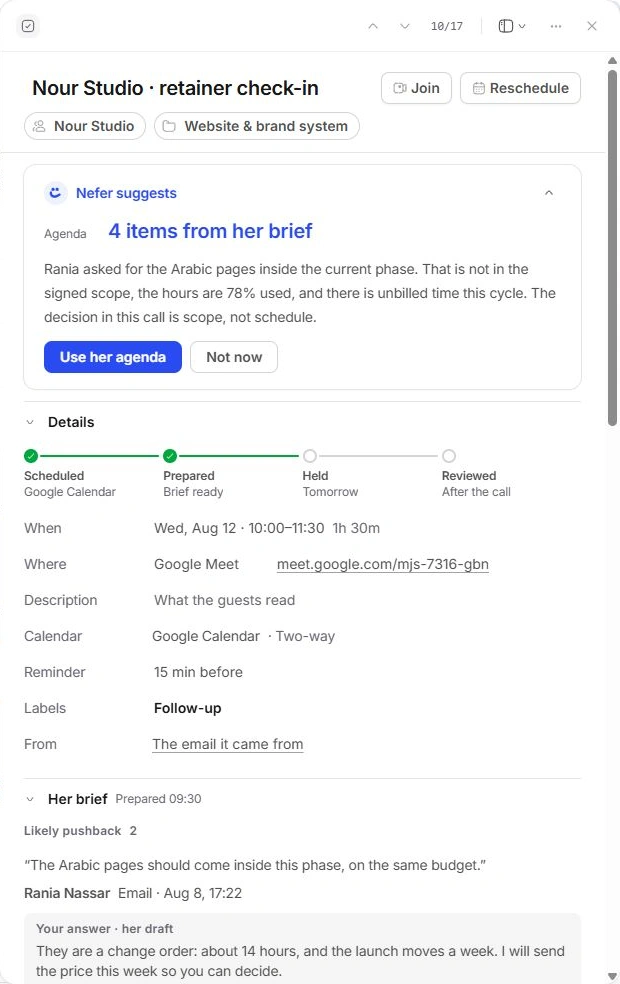
Open the event and use its editable property values. Reschedule changes timing; Where, Reminder, Labels, Description and people controls handle their own information. Check related record chips before changing a meeting with a similar title.
A read-only event cannot be rescheduled or edited as though it were a two-way source. It keeps the source invitation and meeting link. Open Calendar settings → Calendars to review the source’s access and the destination for new meetings.
Check the result
- Confirm the title, date, time zone, duration, source and guests on the resulting record.
- Check for a clash or overlap warning before treating the time as clear.
- Use the change notice’s Undo when an edit was accidental.
- Check the meeting’s attendance and calendar destination separately when confirming an external invitation.
- If you cannot save or change the event, check required title and timing fields, select a writable calendar, and read any conflict or access explanation. For a repeated meeting, confirm whether the change applies to this occurrence or the series.
Need a clarification? Tell us what you were trying to do below.
Was this article helpful?
Need help with your workspace?
A support request lets the team reply to you directly.
Get help with this article