
Plan milestones and delivery dates
Build checkpoints, connect deliverables and understand what signing off a milestone changes.
On this page
Read the plan
Overview shows milestones in delivery order. Select a checkpoint to see its deliverables, client wording and payment allocation. A project due date is the overall commitment; each milestone and deliverable also has its own date.
Create or edit a milestone
- Choose New → Milestone.
Enter a meaningful name and date. To edit an existing checkpoint, open it from the plan or Timeline.
- Review the client wording.
Use Client sees to express the checkpoint in terms the client understands.
- Attach the right deliverables.
Use Add existing deliverable or New deliverable. Review the due date and expected approval for each item.
- Review its payment.
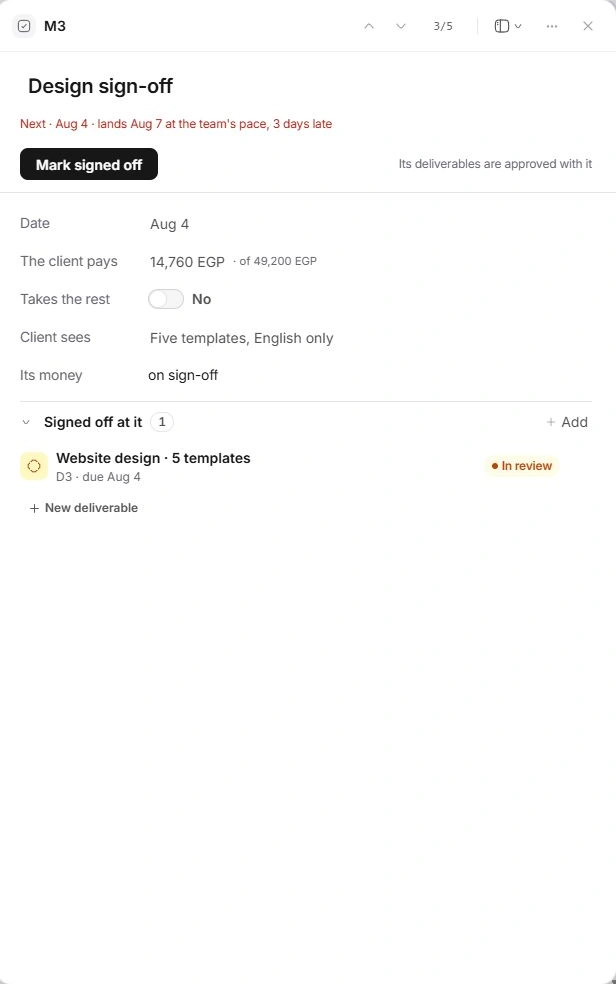
Check The client pays and Takes the rest when present. Confirm the allocation against the contract before treating the milestone as billable.
Review before signing off
Mark signed off also approves the milestone's deliverables. Check the selected checkpoint and its full deliverable list before confirming. Completed tasks alone do not prove the client has approved the output. Read Financials afterward to see the payment's next action; sign-off is not payment.
If dates or membership change
Open the relevant milestone or deliverable to correct its date or assignment. A forecast landing date can differ from the committed date without changing that commitment. Deleting a milestone leaves its deliverables unassigned; review and place them in the right checkpoint rather than recreating them.
Need a clarification? Tell us what you were trying to do below.
Was this article helpful?
Need help with your workspace?
A support request lets the team reply to you directly.
Get help with this article