
Link records to a client
Connect people, leads, deals and projects while preserving the original records.
On this page
Review and add relationships
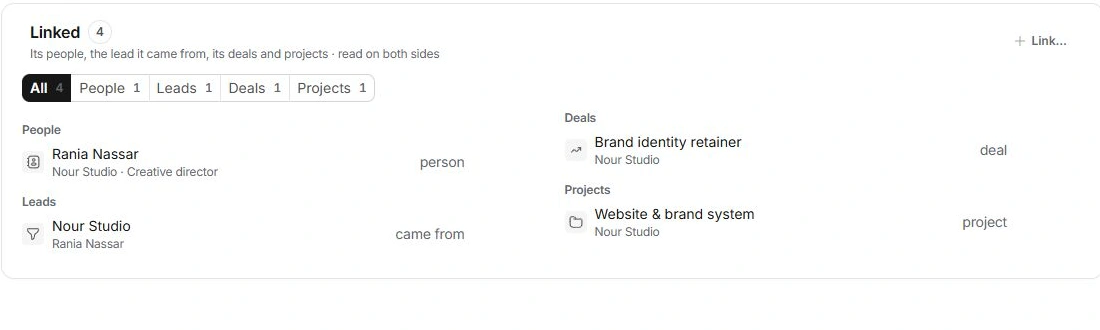
- Open Client settings → Linked.
Choose All or a record-type filter.
- Open the intended record.
Check its name, client and purpose before adding another relationship.
- Use Link… for an existing record.
Choose the appropriate person, lead, deal or project and inspect the result.
- Check the other side.
Confirm that the linked record represents the relationship you intended.
Keep people and projects in context
Contact records describe people; the client describes the commercial account. Projects describe delivery and deals describe opportunities. A company name alone is not enough to decide which record should be connected.
Unlink without confusing it with deletion
Unlink removes a relationship. It does not reverse an invoice, cancel a project or delete a contact’s source record. Check automatic or work-based associations before correcting a link.
When the record is absent
Search the owning module before creating it. Check record type, filters and access. Use Files for attachments and project file collections rather than trying to represent an uploaded file as an account relationship.
Need a clarification? Tell us what you were trying to do below.
Was this article helpful?
Need help with your workspace?
A support request lets the team reply to you directly.
Get help with this article