
Set up Inbox routing rules
Define a clear matching rule and review the conversations affected before running it.
On this page
Create the rule
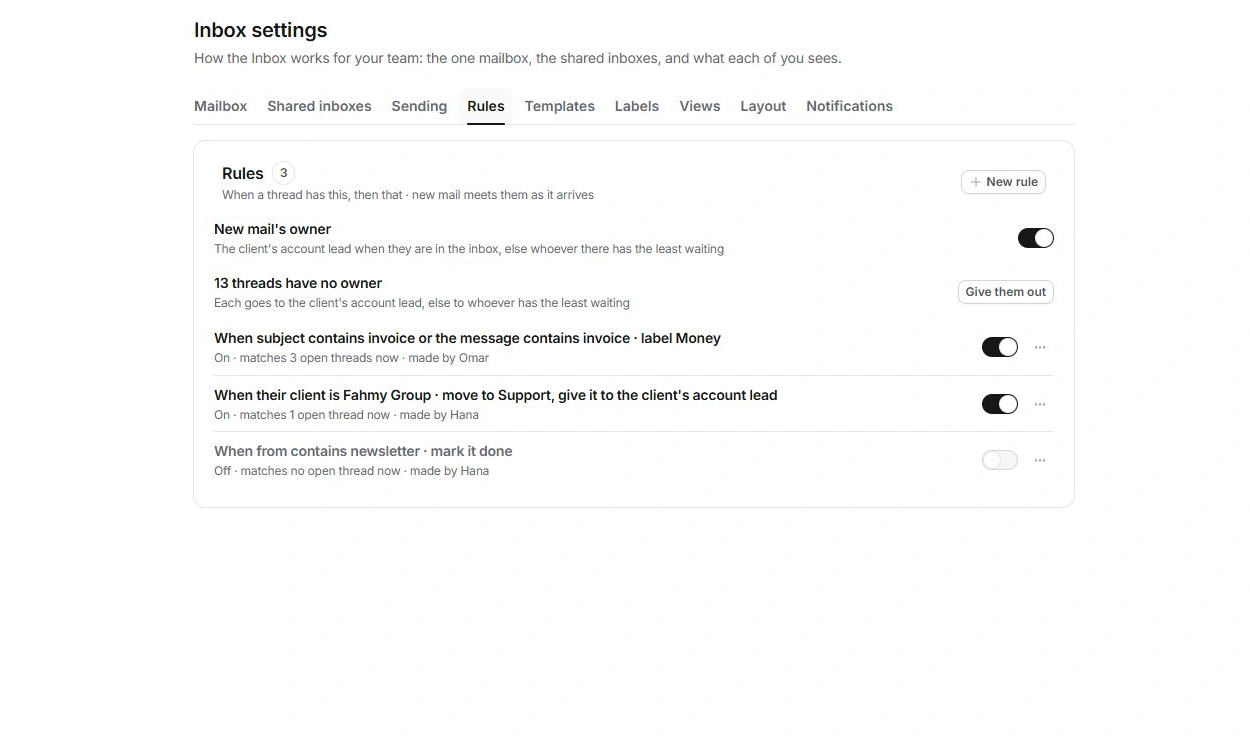
- Open Inbox settings → Rules.
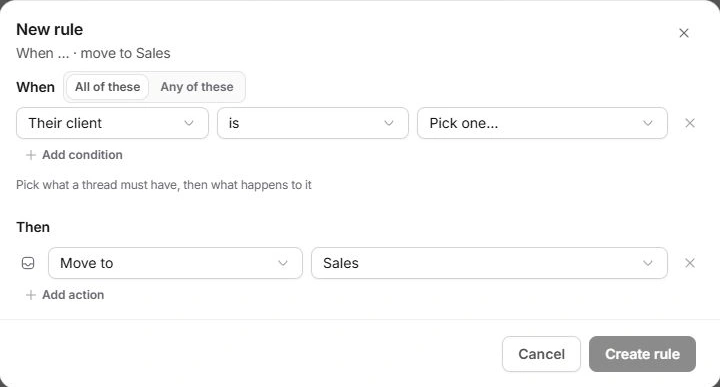
Choose New rule.
- Choose what must match.
Use all or any conditions, then set each field, operator and value.
- Choose what should happen.
Actions include Move to, Give it to, Label it and Mark it done.
- Read the generated sentence and match count.
Correct broad conditions before saving. A rule that matches no current open conversation may still be valid for a different case.
Choose an appropriate owner action
Give it to can name a person, the client’s account lead or whoever has the least waiting. Check that the destination inbox and selected person make sense together.
New mail’s owner is a separate setting. When enabled, Give them out can assign current unowned threads using the stated rule. Read the count before running that action.
Separate saving from running now
Create rule or Save rule keeps the definition. Save and run on [count] also applies it to the currently matched set. An existing rule’s more menu offers Run it on the [count] it matches now.
Inspect a sample of matching conversations before a rule that marks work done or moves it into a restricted inbox. The summary count should agree with the action you intend.
Review and correct a rule
Use the rule switch to turn its configuration on or off, Edit… to change it, and Delete rule to remove the definition. Check affected conversations and activity after a run. Use Undo where offered; deleting a rule is not the same as reversing a prior run.
Need a clarification? Tell us what you were trying to do below.
Was this article helpful?
Need help with your workspace?
A support request lets the team reply to you directly.
Get help with this article