
Use and manage reply templates
Insert a saved response, resolve its placeholders and keep useful wording available to the right people.
On this page
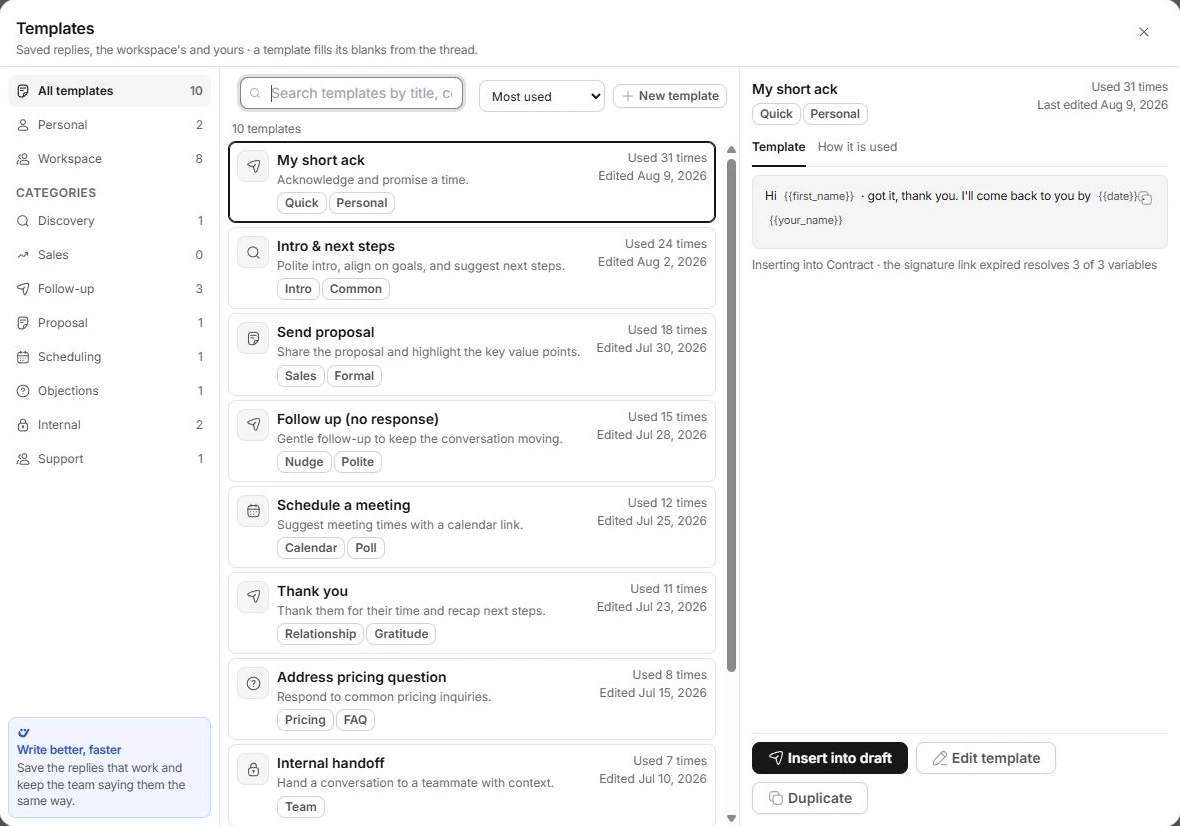
Find and insert a template
- Choose Templates in a reply or Compose.
You can also type / where you write to open a template picker.
- Search or choose a category.
Use All templates, Personal, Workspace or a purpose category. Sort by Most used, Recently edited or A–Z.
- Read the selected template.
Review its purpose, body, usage guidance and variable count.
- Choose Insert into draft.
Read the inserted text in the actual conversation and replace any unresolved {{…}} placeholder before sending.
Review the resolved values
Variables such as {{first_name}}, {{company_name}}, {{your_name}}, {{subject}} and {{date}} use the available conversation and identity context. Missing context leaves the placeholder visible, so a variable count is useful preparation rather than permission to send without reading.
Check the surrounding wording as well as the placeholders. A reusable response may still contain an unsuitable promise or deadline.
Save wording the team can reuse
Choose New template from the browser or Inbox settings → Templates. Enter a name, what it is for, category, scope and body. Personal is for you; Workspace makes the saved wording available to the team.
A written draft can seed a template. Remove client-specific details and repeated signature content before saving. A template requires a name and body.
Maintain the library
Use Edit template to correct existing wording, or Duplicate to start a personal variation. Settings lists purpose, scope, kind and usage. Deleting a saved template removes that reusable item, not messages where its text was already inserted.
Need a clarification? Tell us what you were trying to do below.
Was this article helpful?
Need help with your workspace?
A support request lets the team reply to you directly.
Get help with this article