
Manage deal stages and fields
Find pipeline configuration and check how a change affects Deals and its saved views.
On this page
Open the pipeline settings
Open Settings → Modules → Pipeline, or the pipeline settings entry from the module. Review the current stages, field definitions and stage assumptions before editing them.
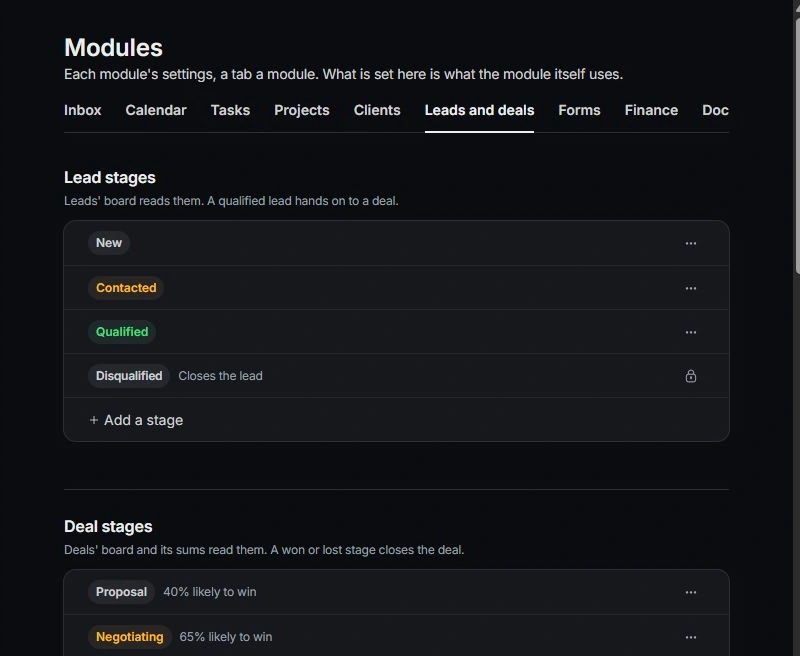
Preserve meaningful progression
Stage names should describe the client’s commercial decision. Check the permitted transitions and the meaning of won and lost outcomes. A renamed stage should still be understandable to everyone moving opportunities.
Use the list controls to add a stage, rename one or move its order. A custom stage has a Counts as value that preserves the underlying workflow meaning. Completed outcome stages are protected; read the lock explanation. Removing a custom stage returns its records to the underlying stage it counted as.
Review fields and assumptions
Keep fields such as value, owner, close date and fee basis consistent across opportunities. If you change a forecast assumption, explain its planning meaning to the team rather than presenting it as a proven conversion rate.
Custom fields can be added, renamed, reordered and removed from the shared list. Check whether a change affects every record of that type. Rename a useful field instead of adding a second field for the same information.
Check the pipeline after a change
Open a representative deal and inspect the board, stage control, filters and scope. Review saved views that depend on the changed field. If you cannot access the configuration, ask an owner to review your role.
Need a clarification? Tell us what you were trying to do below.
Was this article helpful?
Need help with your workspace?
A support request lets the team reply to you directly.
Get help with this article