
Save and manage task views
Keep a useful filter, sort, grouping and column arrangement under My views.
On this page
Prepare the view
Choose the sidebar work set and List layout, then configure Filter, Sort, Group and Display. Check the actual matching records before saving an arrangement that others will use.
A layout tab, such as Board, is a way to draw tasks. A saved view is a named configuration of the work. Do not treat adding a layout as saving a shared team view.
Save a named configuration
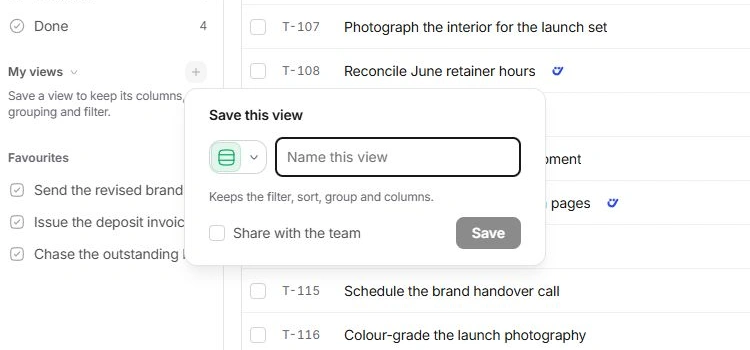
- Choose Save this view.
Use the action beside My views in the Tasks sidebar.
- Enter a clear name.
Name the job the view answers, such as Design work due this week.
- Choose whether to share.
Share with the team changes the saved view’s intended audience. Leave it off for a personal arrangement.
- Choose Save.
The view is listed under My views. Open it to restore its saved configuration.
Restore or remove a saved view
Choose its name in My views to restore the saved filter, sort, group and columns. Review the controls to understand why the restored result differs from All tasks.
The saved view’s context menu provides removal. Removing the saved configuration does not delete its tasks. Check the restored filters and columns when reopening a view.
If the view gives no results
- Check its filters against the current records; a useful view can become empty after work is completed.
- Return to All tasks and clear search to find the underlying work.
- Save a corrected configuration instead of duplicating the tasks.
- Confirm the sharing choice before asking teammates to use a personal view.
Need a clarification? Tell us what you were trying to do below.
Was this article helpful?
Need help with your workspace?
A support request lets the team reply to you directly.
Get help with this article