
Change a task’s status or priority
Record progress, complete or reopen work, and distinguish status from urgency and blockers.
On this page
Change progress
In Board, moving a card to another status column changes its status. Moving between groups based on another property changes that grouping property instead. Read the Group control before dragging.
- Open the task’s status.
Choose the Status value in Task details. Pick the stage that reflects the next real action.
- Check the returned state.
The task’s status and its grouped position update together. Custom stage names may differ between workspaces.
- Complete or reopen when appropriate.
Use the completion checkbox in List or the task’s primary action. A completed task can be reopened; check the resulting status and any active timer.
Set urgency separately
- Choose Priority.
Use the value in the inspector or an editable Priority cell in List.
- Choose High, Normal or Low.
The choice describes urgency. It does not change the deadline, assignee or dependency.
- Review the view.
A priority sort or grouping may move the task. Confirm its title and ID before making another change.
Understand blocked work
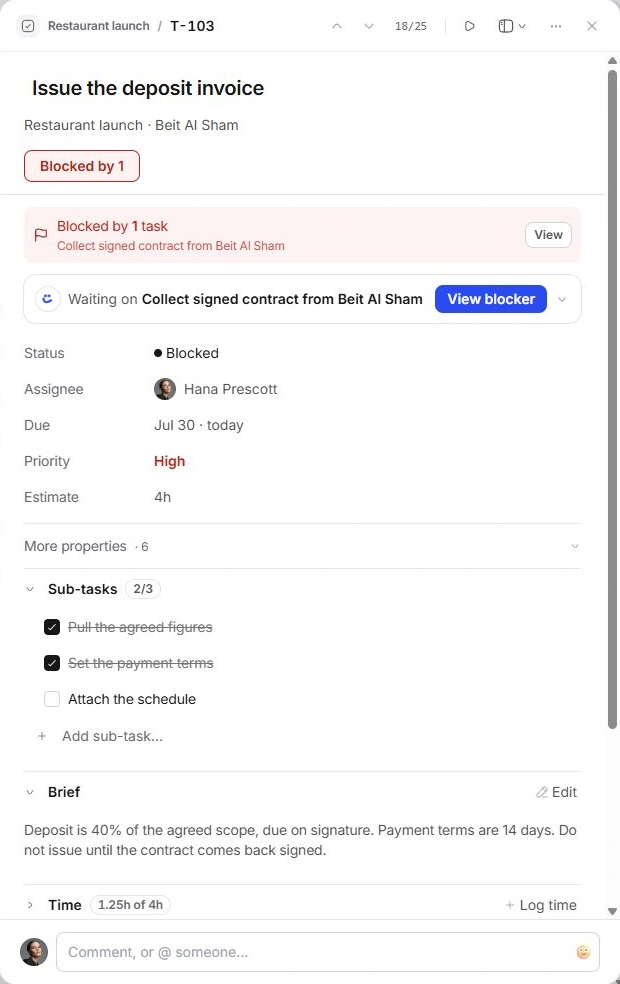
A status named Blocked communicates progress. Dependencies identify the actual task that is preventing work. Setting a status alone does not establish a dependency.
When a task shows Blocked by, open View or View blocker and inspect the prerequisite. Do not mark a prerequisite complete just to clear the warning. Complete it only when its work is actually finished.
Undo an accidental completion
Use Undo in the change notice while it is available. Otherwise reopen the task and set the intended status. If completed work disappears, enable Show done in Display or open Done in the sidebar.
Completing a task can stop or restrict time tracking. Review the Time section instead of assuming the last timer state still applies.
Need a clarification? Tell us what you were trying to do below.
Was this article helpful?
Need help with your workspace?
A support request lets the team reply to you directly.
Get help with this article