
Understand access and permissions
Separate workspace roles, record responsibility and client-mail access when checking permissions.
On this page
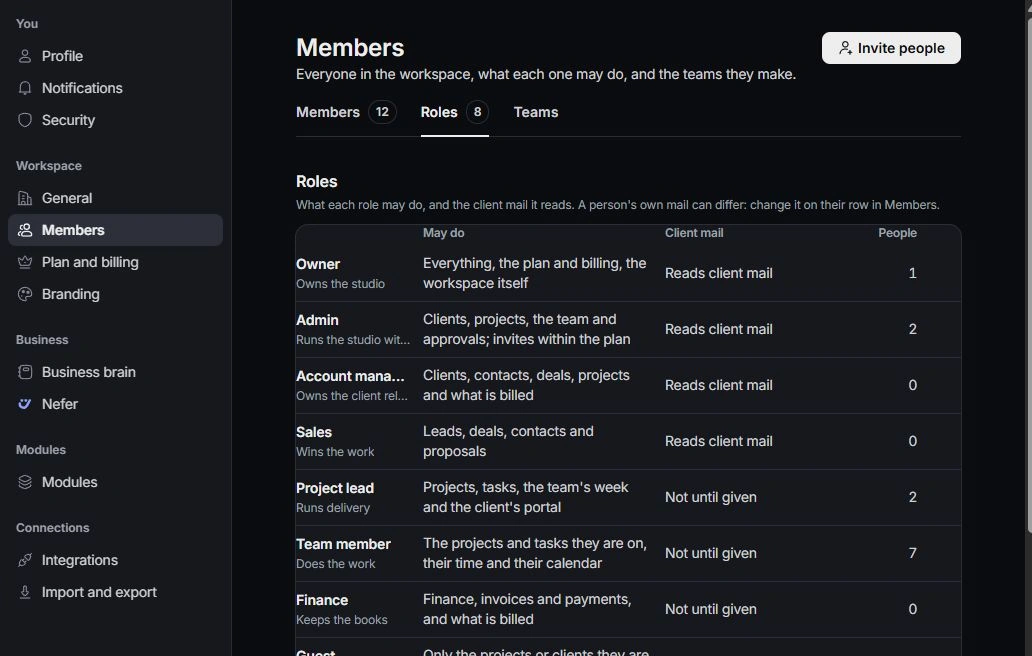
Read the workspace role
Open Settings → Members → Roles to review the current descriptions. Owner, admin and specialist roles support different jobs. Your profile shows your own access; an owner manages role changes.
Check the work’s assignment
A module can show different work depending on your responsibility and role. Check the record owner, project relationship and current view before concluding that access is broken.
Review client-mail access separately
Members includes client-mail access as a distinct decision. Two people with the same role can have different mail visibility. Give the owner the exact mailbox or conversation context when requesting a review.
Resolve a blocked action
Read any disabled-control explanation, then ask an owner to review the smallest access needed for the work. Do not share credentials or create a second account to bypass a restriction. Contact support if the expected access remains unavailable after review.
Need a clarification? Tell us what you were trying to do below.
Was this article helpful?
Need help with your workspace?
A support request lets the team reply to you directly.
Get help with this article