
Snooze and return to a conversation
Set a deliberate return time or wait for the next reply without losing the thread.
On this page
Choose when it should return
- Open the conversation.
Check that it is the thread you want to set aside.
- Choose Snooze in the header.
The menu offers Tomorrow morning, Monday morning, Until they reply and Pick a date.
- Check the displayed date and time.
The preset includes its exact date. Use Pick a date when the work needs a different return time.
- Choose the return condition.
The thread leaves active views and keeps its messages, links and ownership.
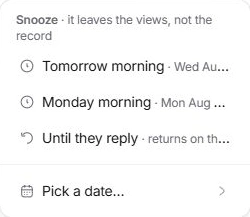
Time-based and reply-based snoozes differ
Until they reply returns the conversation on the other side’s next message. A date-based snooze uses the chosen return time. Read the thread’s Back… label when you need to confirm which condition applies.
Snoozing does not tell the client that the team is away. If they need an answer or an agreed date, prepare the appropriate reply separately.
Bring a conversation back early
Open Snoozed from the additional folders under More. Choose the conversation and use Unsnooze. If you completed the work while it was snoozed, Done is also available.
Snooze can be offered for selected rows. Check the selection count because the same return condition will apply to the set, not only the open reader.
If the return looks wrong
Check the exact date, displayed time and whether Until they reply was selected. Look in Snoozed before creating a duplicate. Use Unsnooze and choose a corrected return time if needed.
Need a clarification? Tell us what you were trying to do below.
Was this article helpful?
Need help with your workspace?
A support request lets the team reply to you directly.
Get help with this article