
Navigate the project workspace
Find a project, understand its main pages and open the records behind delivery.
On this page
Find the right project
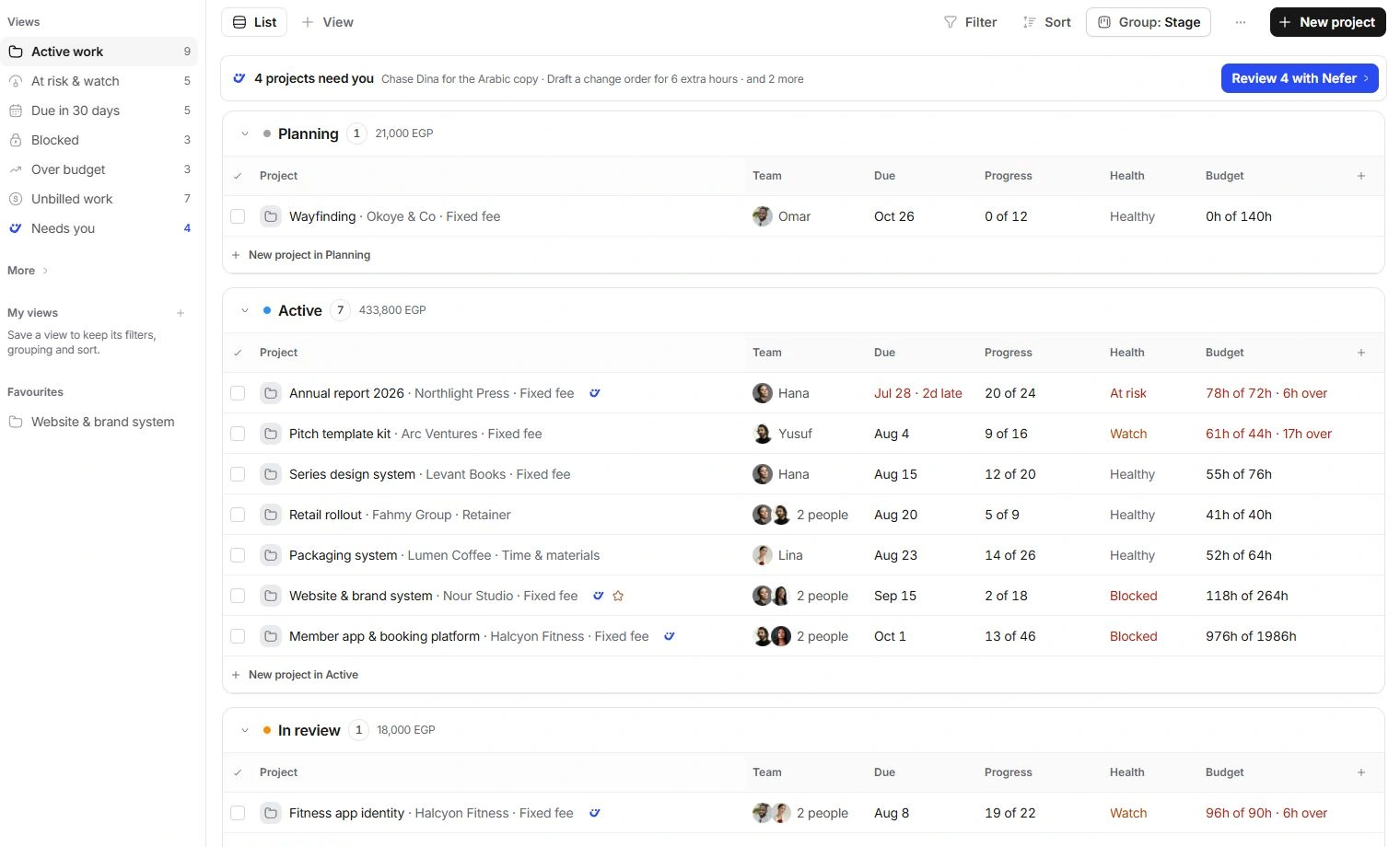
Open Projects from the workspace navigation. Active work is a useful starting point. At risk & watch, Due in 30 days, Blocked, Over budget and Unbilled work each focus on a different delivery problem. Needs you gathers decisions awaiting review.
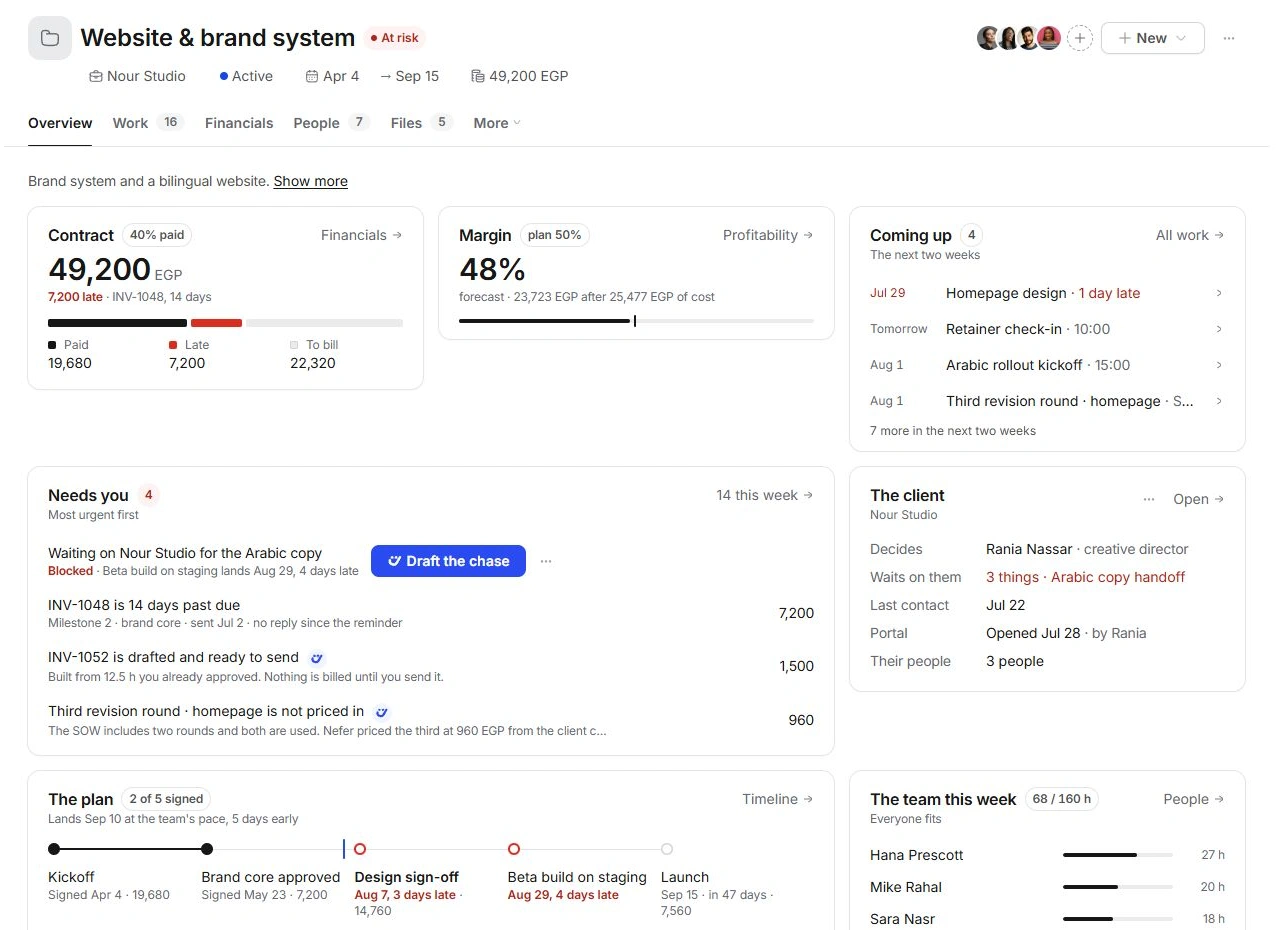
Open a project row to reach its full page. Its header keeps the project code, name, health, team, client, stage, dates and contract value together. Health describes delivery risk; Stage describes where the engagement is in its lifecycle.
Choose the page for your question
- Overview: the next actions, plan, client context and internal discussion.
- Work: deliverables, tasks, dependencies and the timeline.
- Financials: invoices, time approvals, costs and profitability.
- People: ownership, capacity, client contacts and conversations.
- Files: attachments, outside links and Documents records.
- More: Activity, Scope and Project settings. When one of these is selected, its name replaces More; select that tab again to switch to another.
Open the source behind a summary
A task opens its inspector. A milestone or deliverable opens a detail drawer. Linked emails, meetings and documents lead to the module responsible for them. Read the record before changing a date, approving work or preparing a client message.
Create work without losing context
Use New in the project header for Task, Deliverable, Milestone, Email, Meeting, Invoice, Expense, Change request, Document, Scope of work or Form. Review the client and project in the destination. A prepared email or invoice still needs its own review.
Need a clarification? Tell us what you were trying to do below.
Was this article helpful?
Need help with your workspace?
A support request lets the team reply to you directly.
Get help with this article