
Find client documents and files
Find account attachments, project files and the original document records.
On this page
Use the account’s Files page
Open Files. The first section holds attachments kept on the client record, with Add file and pin/remove actions. Use a descriptive filename and check existing files before adding another version.
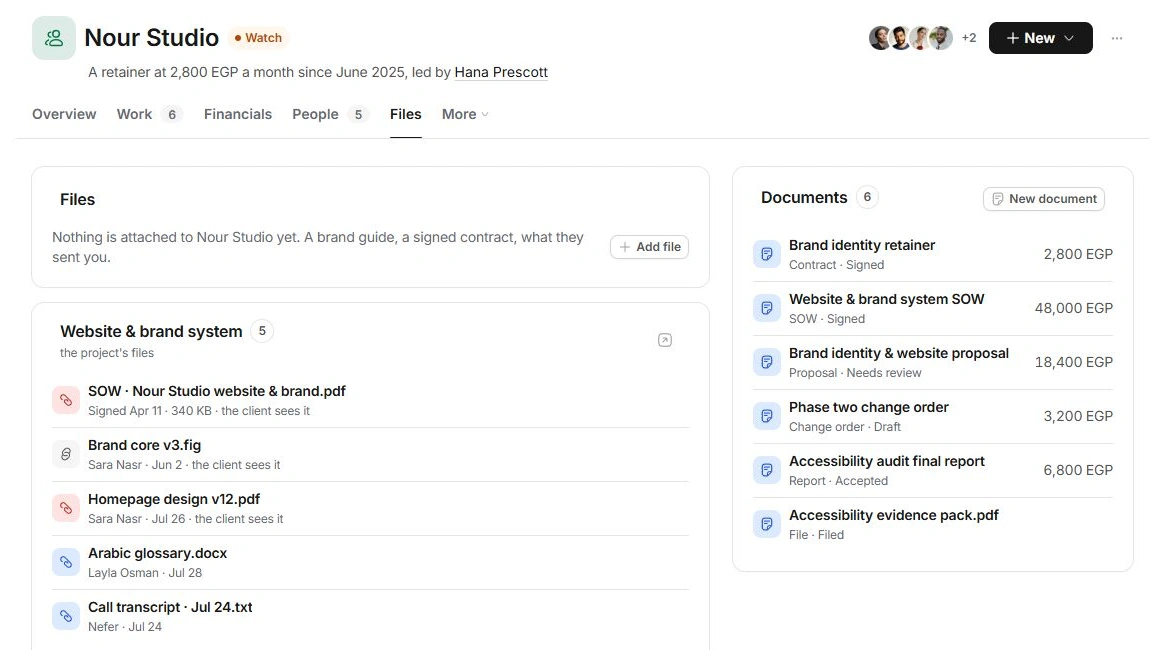
Follow a project’s files to its source
Project sections show what each engagement keeps. Open a file preview or use Every file on the project’s Files page to see the full collection. Client-visible wording belongs to that project’s sharing settings; an account attachment is not automatically a published portal file.
Read Documents records separately
Documents lists proposals, contracts, SOWs and reports with their states and values. Open the record to review or compose it. New document prepares a linked draft; it is not evidence that a client accepted or signed it.
Keep useful references close
Pin frequently used files or documents to the account sidebar. Removing an account attachment and unpinning a favourite are different actions. Use Undo after removing the wrong attachment, and inspect the owning document rather than uploading duplicates to correct its state.
Need a clarification? Tell us what you were trying to do below.
Was this article helpful?
Need help with your workspace?
A support request lets the team reply to you directly.
Get help with this article