
Set dependencies
Identify prerequisite tasks, understand the blocked state and remove relationships safely.
On this page
Add a prerequisite
- Open the dependent task.
This is the task that cannot move forward yet, not the task that must be completed first.
- Expand Dependencies.
Choose Add a blocker.
- Find the prerequisite.
Search or select the task that must finish first. Check its title and ID before choosing it.
- Review the relationship.
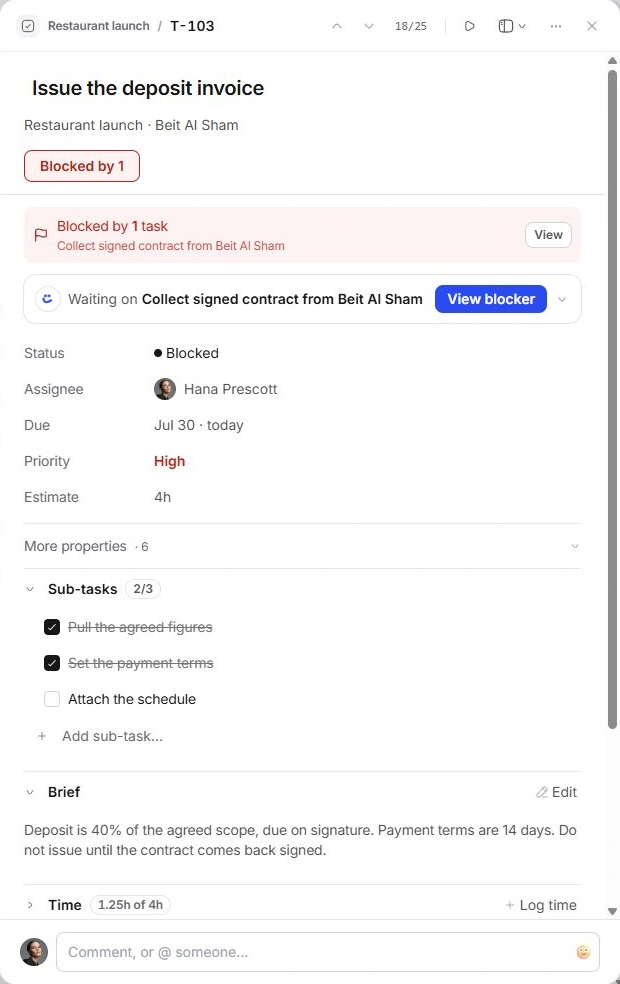
The blocker appears in Dependencies. Where it is still open, the task can show a Blocked by notice with a direct way to inspect it.
Resolve the underlying work
Open the named blocker from View, View blocker or the dependency row. Read its status and instructions. Resolve that task’s real work, or ask its responsible person about the next step.
When the prerequisite is completed, check the dependent task again. A dependency relationship and the dependent task’s chosen workflow stage remain different information; review both before resuming work.
Remove an incorrect dependency
- Return to the dependent task.
Expand Dependencies so you can identify the exact relationship.
- Choose Remove … as a blocker.
Remove only the incorrect prerequisite. This unlinks the relationship; it does not delete the other task.
- Check the blocked notice.
If another open prerequisite remains, the task may still be blocked. Inspect all listed blockers.
If work still appears blocked
- Check whether the blocker is actually completed rather than merely in review.
- Check for more than one dependency.
- Check whether a manually chosen Blocked stage still needs updating.
- Use the task ID and blocker ID when reporting an inconsistent state. Do not clear unrelated dependencies to hide it.
Need a clarification? Tell us what you were trying to do below.
Was this article helpful?
Need help with your workspace?
A support request lets the team reply to you directly.
Get help with this article