
Use your team’s room
Discuss shared-inbox work internally and follow its tasks, files and links.
On this page
Open the room for the inbox
Choose the shared inbox and open its Room destination. The room header identifies the team and marks the discussion Internal only. Room access follows the shared inbox’s membership; it is not a client email thread.
Messages, Tasks, Files and Links give different ways to read the same room’s work. Counts describe those contents.
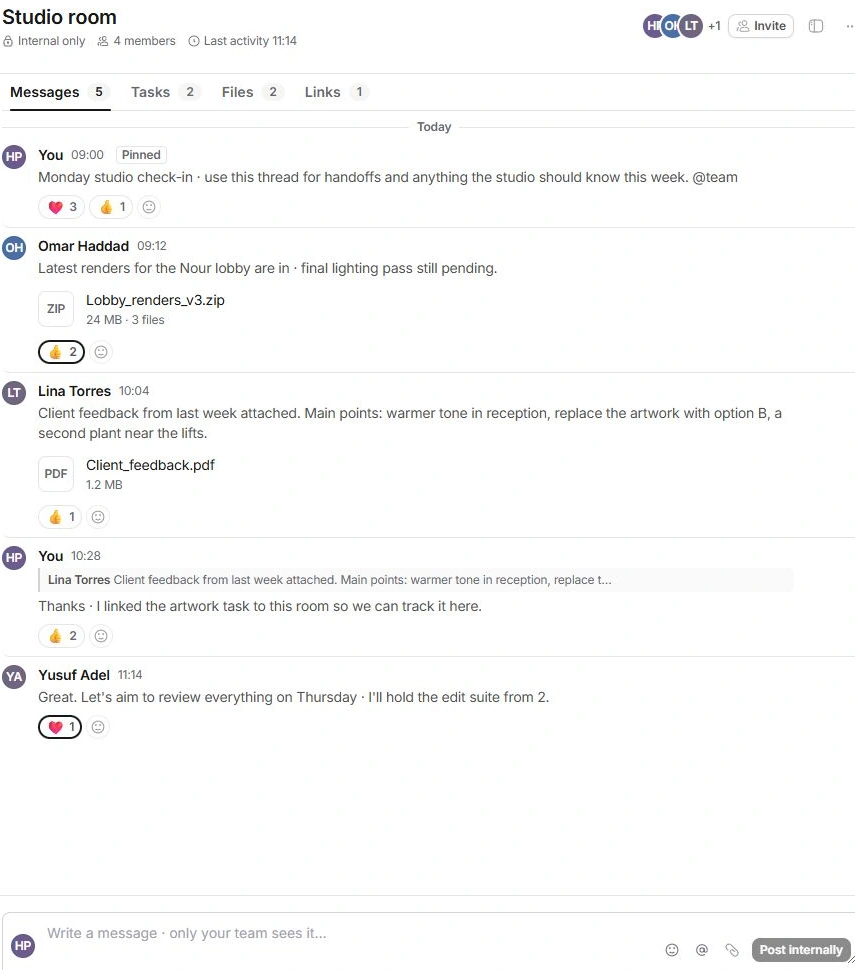
Write and follow a discussion
- Open Messages.
Read the recent discussion and any quoted message before replying.
- Write the team update.
Use the room composer. Select Reply on a message to keep the answer attached to that point.
- Acknowledge or pin useful information.
Reactions reduce unnecessary replies. Pin a message when the team needs to find it again.
- Inspect details and related material.
Show details opens room information. Tasks, Files and Links collect the corresponding shared items.
Keep ownership with the work
Open the linked task or thread when a discussion creates an action. Confirm its owner and due date there. Room notifications can be Every message, Mentions or Muted; use the room or Inbox notification settings to choose the right level.
Need a clarification? Tell us what you were trying to do below.
Was this article helpful?
Need help with your workspace?
A support request lets the team reply to you directly.
Get help with this article