
Create and manage shared inboxes
Set up a team queue with a purpose, routing address and explicit member or observer access.
On this page
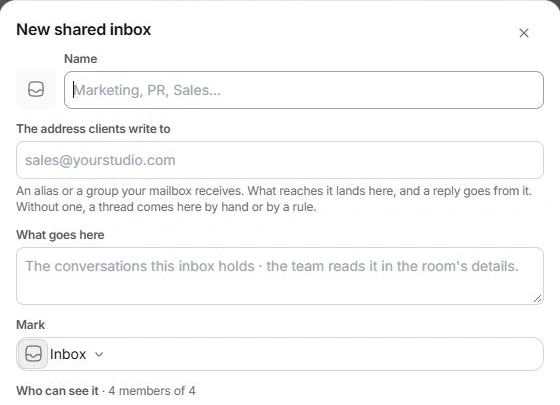
Create the shared inbox
- Choose New shared inbox.
Use the plus beside Shared inboxes, or Inbox settings → Shared inboxes.
- Give it a clear name and purpose.
Choose a mark and explain What goes here so the team can distinguish queues.
- Review The address clients write to.
Use an alias or group the mailbox receives. One address feeds one shared inbox; a duplicate or invalid address must be corrected.
- Review access and choose Create shared inbox.
Check each team’s and person’s setting before creating the queue.
Choose Members, Observers and No access
Members work the inbox’s threads, own them and answer them. Observers follow the inbox without becoming its owners. No access removes the inbox from that person’s available destinations. Use the people, role or team search for a larger roster.
The creator remains included. Team controls can change several people together, so check the group’s resulting state before saving.
Keep routing and ownership clear
Without its own address, a thread can enter the shared inbox by a manual move or a rule. Moving a thread changes its team destination and can change the eligible owner and sending identity. Read those details after a move.
A shared inbox also has an internal team room. Use it for discussion across the queue, while an internal note stays attached to one conversation.
Manage or remove the inbox
Open the inbox’s management action from Inbox settings → Shared inboxes to adjust its name, purpose and people. Save after reviewing the changes.
Delete space asks for confirmation: its conversations return to Workspace inbox and its room is removed with it. Review room content and access before choosing that action.
Need a clarification? Tell us what you were trying to do below.
Was this article helpful?
Need help with your workspace?
A support request lets the team reply to you directly.
Get help with this article