
Prepare for a client meeting
Read the meeting brief, review likely questions and build an agenda from the connected work.
On this page
Open the right meeting
- Select the meeting.
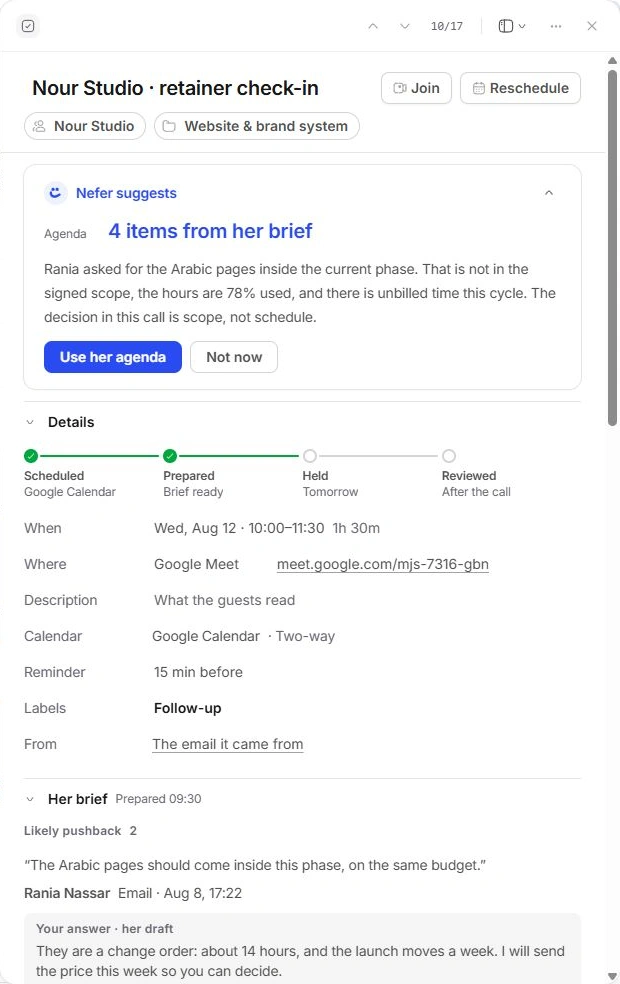
Open it from My calendar or the Meetings library. Confirm its title, people and related client or project.
- Read Details.
Check When, Where, Description, Calendar and Reminder. A meeting’s source may be read only.
- Expand Her brief.
Read the prepared context before following a suggestion. The brief may include recent messages, money, scope and open work.
- Open the linked records.
Follow the project, client or other evidence when a summary needs checking.
Prepare an agenda
A Nefer proposal can offer Use her agenda. Review the suggested items and choose it only when they fit the meeting’s purpose. You can also add agenda items yourself, with minutes, and mark items as covered.
Likely pushback shows a concern and the proposed answer in context. Use Change it to adjust your prepared response. A draft answer is preparation for you; it is not a message already sent to the client.
Check who is attending
People distinguishes the organiser, participant roles and responses. A Decides marker identifies an important decision maker. No reply is different from a declined invitation.
Invite, remove-person and Nudge controls belong to attendance management. Review the target and the resulting draft or notice, then check the delivery status when an invitation is involved.
Decide what Nefer should do
Expand Nefer on this meeting to review her roles. A brief can be useful even when you do not want notes taken. A listening or live indicator tells you the state shown for that meeting.
Keep sensitive internal preparation out of Description and any shared recap. Studio notes, transcript controls and guest-facing information have separate audiences.
Need a clarification? Tell us what you were trying to do below.
Was this article helpful?
Need help with your workspace?
A support request lets the team reply to you directly.
Get help with this article