
Link a contact to a client
Connect the person’s organisation and supporting records without confusing a label with a relationship.
On this page
Set where the person works
- Open the person’s contact drawer.
Check their identity and current Company.
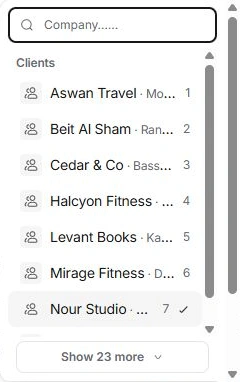
- Choose Company or Change company.
Search the known clients, leads and companies.
- Select the existing organisation.
Create a company only when the directory genuinely lacks it. Review the person’s subtitle afterward.
- Review Linked as.
Choose the appropriate relationship classification separately from the Company association.
Review supporting records in Linked
Linked can connect the contact to a client, lead, project or another related record. Use Link… to choose an existing record, then open it to check the other side. A Linked as label alone does not establish every supporting record relationship.
Review the account’s contact role separately
If the person should be the account’s main contact, open Client settings → Contact. Adding a person to the directory does not automatically appoint them primary contact or grant portal access.
When the wrong company is shown
Choose the correct existing organisation and inspect the linked records. Do not change a person into a Company record to fix their employer. Check the client code and record type when organisations share similar names.
Need a clarification? Tell us what you were trying to do below.
Was this article helpful?
Need help with your workspace?
A support request lets the team reply to you directly.
Get help with this article