
Create a project
Give an engagement a clear client, owner, scope, commercial basis and delivery plan.
On this page
Start from Projects
- Choose New project.
The new project opens as its own page. Name it in Project name so the team can distinguish it from other work.
- Choose the client.
Use Who is it for? or the Client field. Search for the existing client before creating a duplicate.
- Review the stage and dates.
Choose the appropriate stage and set the start and due dates. Do not use a delivery date as a substitute for a milestone plan.
- Choose the responsible owners.
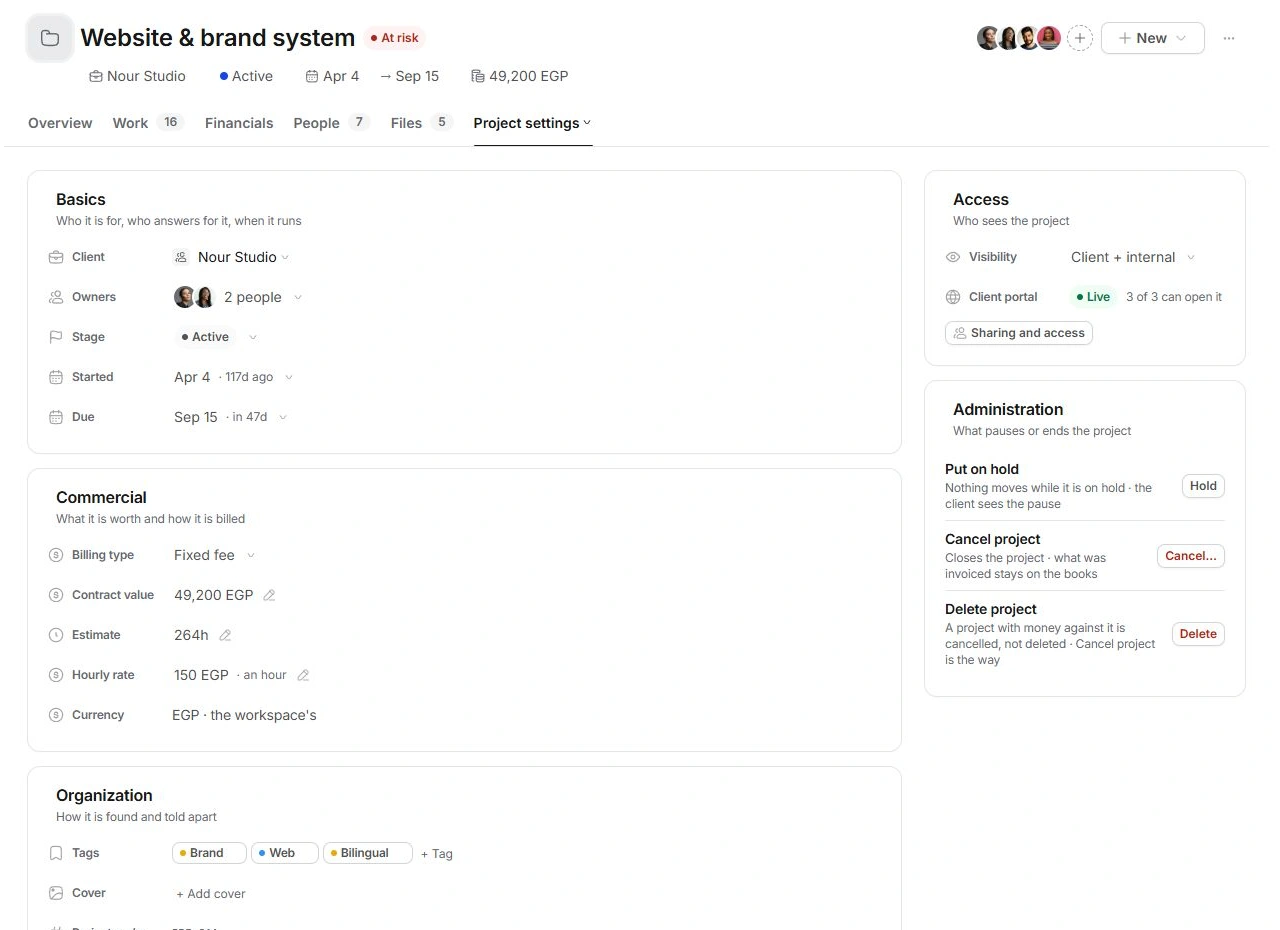
Open Project settings and review Owners. Adding contributors to the team is separate from choosing who answers for the project.

Review the commercial fields
In Project settings → Commercial, check Billing type, Contract value, Estimate and Hourly rate. A fixed fee, hourly engagement and retainer answer different billing questions. Currency follows the workspace; check it before entering amounts.
Prepare a usable delivery plan
- Open Scope.
Write what you deliver and what success looks like. Review assumptions, exclusions and included revision rounds.
- Review milestones and deliverables.
Check any existing plan before adding more. Give each checkpoint a date and connect deliverables to it.
- Add the actual work.
Create tasks under the appropriate deliverable, with an assignee, estimate and due date.
Check the project before handing it over
Return to Overview and confirm the name, client, owners, dates and plan. Review portal settings before sharing anything with the client. If you chose the wrong client, correct Client in Project settings and inspect the linked records before continuing.
Need a clarification? Tell us what you were trying to do below.
Was this article helpful?
Need help with your workspace?
A support request lets the team reply to you directly.
Get help with this article