
Review Calendar drafts and booking outcomes
Clear Needs you by reviewing proposed work and recording what happened to booked calls.
On this page
Open Needs you
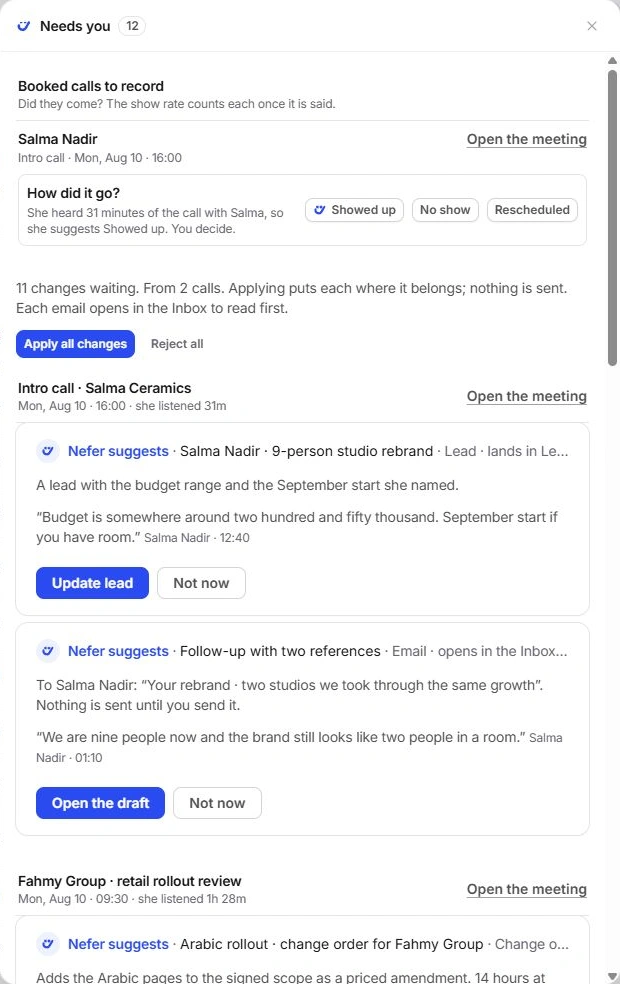
Choose Needs you in the Calendar sidebar. Its drawer collects decisions from calls as well as booked calls that are over and have no outcome.
Drafts are grouped by their source meeting. Open the named meeting when you need its brief, transcript or full review checklist before deciding. A count is a queue size, not a number of changes already made.
Decide what becomes work
- Read the item and its evidence.
Check the source sentence, speaker, timestamp and proposed destination.
- Review or edit the proposal.
A task, invoice, document, project decision or time entry has different consequences. Inspect the proposed values.
- Apply or set it aside.
Apply puts the work in its named destination. Not now or Reject leaves it unaccepted.
- Review email in Inbox.
An email draft opens in Inbox for a separate send decision. Bulk Apply does not send it.
Record the result of a booked call
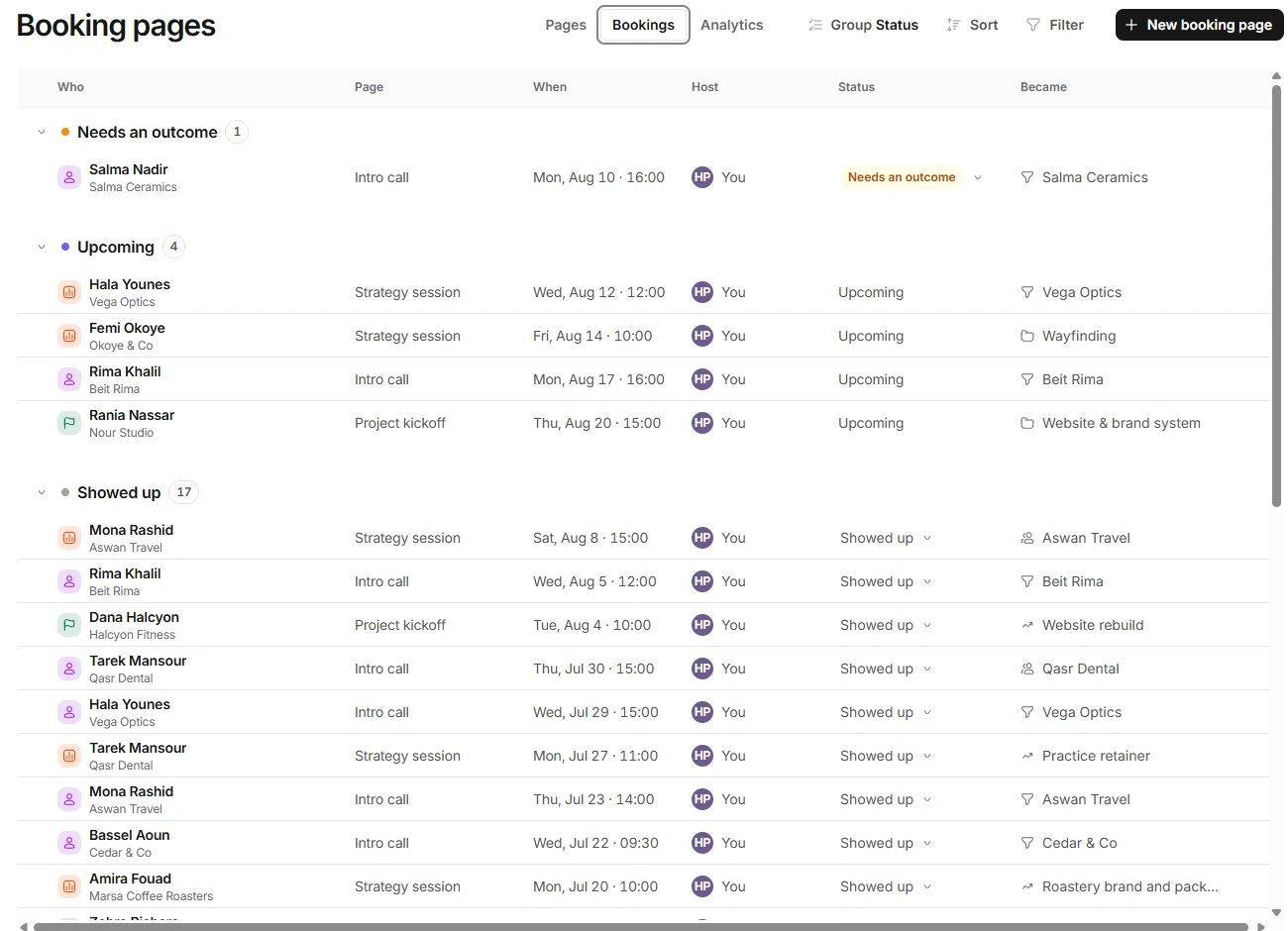
- Open Booking pages → Bookings.
Find the call in Needs an outcome, or use its item in Needs you.
- Choose the outcome control.
Review Showed up, No show and Rescheduled where offered. Select what actually happened.
- Check related work.
The Became column links the relationship or work associated with the booking; an outcome alone is not a reason to duplicate it.
- Review analytics afterwards.
The show rate counts calls with recorded outcomes. An unanswered outcome can explain a missing or incomplete rate.
Confirm the destination and recovery
Use the applied receipt to open the destination record. Check its values and existing context. Use Undo when the action was mistaken.
Recording attendance, preparing an email and changing a meeting date are different actions. Make the appropriate one rather than using a no-show label as a reschedule workaround.
Need a clarification? Tell us what you were trying to do below.
Was this article helpful?
Need help with your workspace?
A support request lets the team reply to you directly.
Get help with this article