
Add comments and attachments
Keep discussion, supporting files and the task’s change history with the work.
On this page
Add a comment
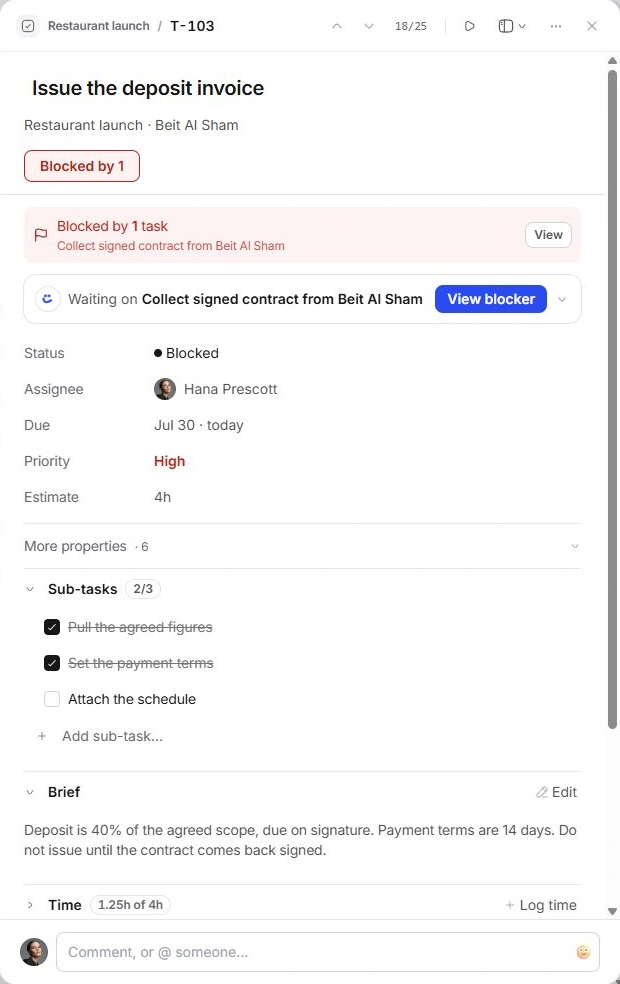
The composer also offers emoji. Mentioning someone in the interface is not evidence that an external email or notification was delivered. Do not put passwords, payment details or unnecessary private client information into a comment.
- Open the task and read its context.
Check the title, brief and related records before adding an instruction.
- Write in the comment composer.
Use Comment, or @ someone… to add the update. A mention chooses a person from the available workspace records.
- Post using the composer’s action.
Review the text before confirming. Expand Comments to read existing discussion and replies.
- Reply to an existing comment when appropriate.
Keep a response with the discussion it answers rather than adding an unrelated top-level note.
Attach a supporting file
Check that the attachment opens successfully before relying on it. If the file is unavailable, keep the original and contact support with the task ID and filename.
- Expand Files.
Choose Attach a file.
- Select the intended file.
Check the filename and size. Use a clearly named document or asset relevant to the task.
- Check its row.
The file is listed with its descriptive details. Use the file row’s remove action if the wrong item was attached.
Read Activity
Expand Activity for the task’s recorded changes, such as title, responsibility or status updates. Read it alongside Comments: history records what changed, while discussion explains why.
The Client visibility description excludes comments, time and files from the task fields it describes as client-visible. Keep internal notes in the internal discussion and check the intended audience of any separate shared document.
If an update cannot be found
- Expand Comments or Files; their sections may be folded.
- Check the task ID and the selected thread.
- If a save failure is shown, use the offered retry rather than repeating the update several times.
- Report the visible error and expected result through support; omit file contents and private contact data unless requested through a suitable private channel.
Need a clarification? Tell us what you were trying to do below.
Was this article helpful?
Need help with your workspace?
A support request lets the team reply to you directly.
Get help with this article