
Review Nefer’s task changes
Inspect proposals, understand held or blocked drafts and decide what to apply.
On this page
Open the review queue
- Choose Needs you or Review changes.
Use the Tasks sidebar or the banner above the work.
- Read the proposal and its reason.
Each item names the task, suggested change and why Nefer drafted it. Compare the existing and proposed values.
- Inspect the evidence.
Open the task or named blocker when the context needs checking. A blocked draft waits on its prerequisite; a held draft may need refreshing.
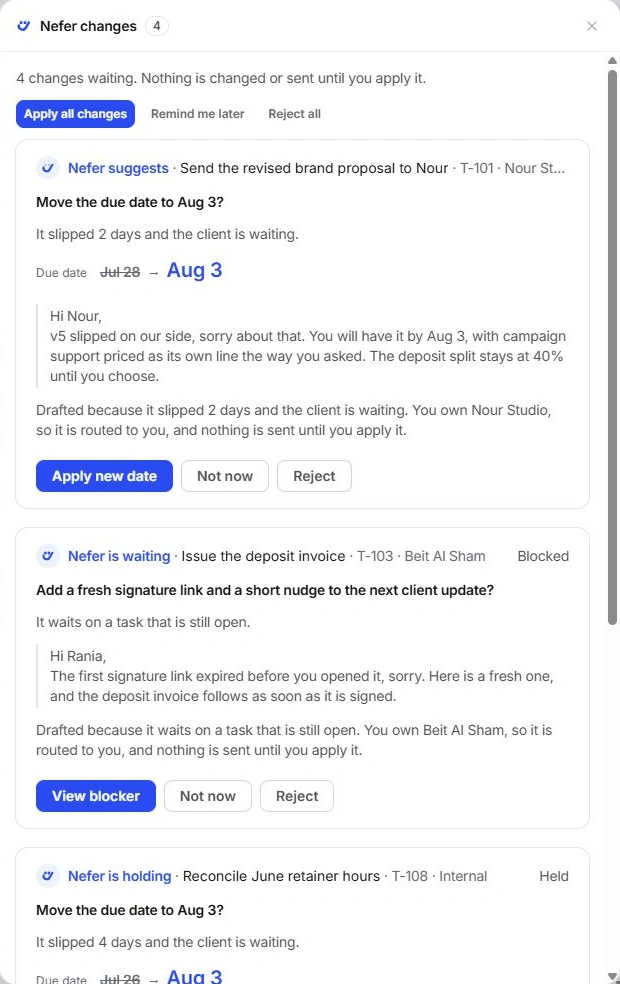
Make an explicit decision
Apply all changes and Reject all affect multiple proposals. Inspect each item and any blocker before choosing a bulk decision.
| Action or setting | Action and destination | What to check |
|---|---|---|
| Apply new date | A due-date proposal → Apply new date | Applies that proposed task date. Check the resulting deadline. |
| Review draft | A message proposal → Review draft | Opens the draft for closer review; applying task changes is not the same as sending a client message. |
| Not now | Individual proposal → Not now | Sets the decision aside rather than treating it as accepted. |
| Reject | Individual proposal → Reject | Declines that suggestion. |
| Refresh suggestion | A held proposal → Refresh suggestion | Asks for the current suggestion before you decide. |
Check what changed
Return to the task and read its updated properties and Activity. Use the offered Undo when the decision was wrong.
Nefer’s draft, a changed task field and a sent message are different states. Check the destination and complete any separate communication review in Inbox. A sample draft is not evidence of external delivery.
If a proposal cannot be applied
- Open the named blocker and check its real progress.
- Refresh held context rather than applying an older assumption.
- Check whether another decision already changed the task.
- Include the task ID and proposal type in a support request if the queue and record disagree.
Need a clarification? Tell us what you were trying to do below.
Was this article helpful?
Need help with your workspace?
A support request lets the team reply to you directly.
Get help with this article