
Configure task statuses and fields
Adjust workflow stages and properties without confusing a workspace rule with a hidden column.
On this page
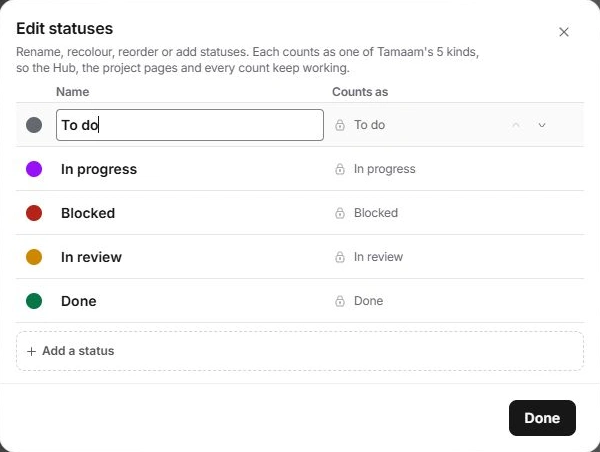
Edit the workflow stages
- Open a task’s Status picker.
Choose Edit statuses where it is offered. Status-group and Board controls can also open the stage editor.
- Review the existing stages.
Read each stage’s name, colour, order and what it counts as before changing it.
- Make the intended edit.
Use the editor’s controls to change the stage definition. A stage’s completion meaning matters as well as its label.
- Check the work afterwards.
Return to a status-grouped view and confirm the headings and affected records. Use Undo on the change notice if the edit was wrong.
Add a custom property
- Open Display and select → Add custom field.
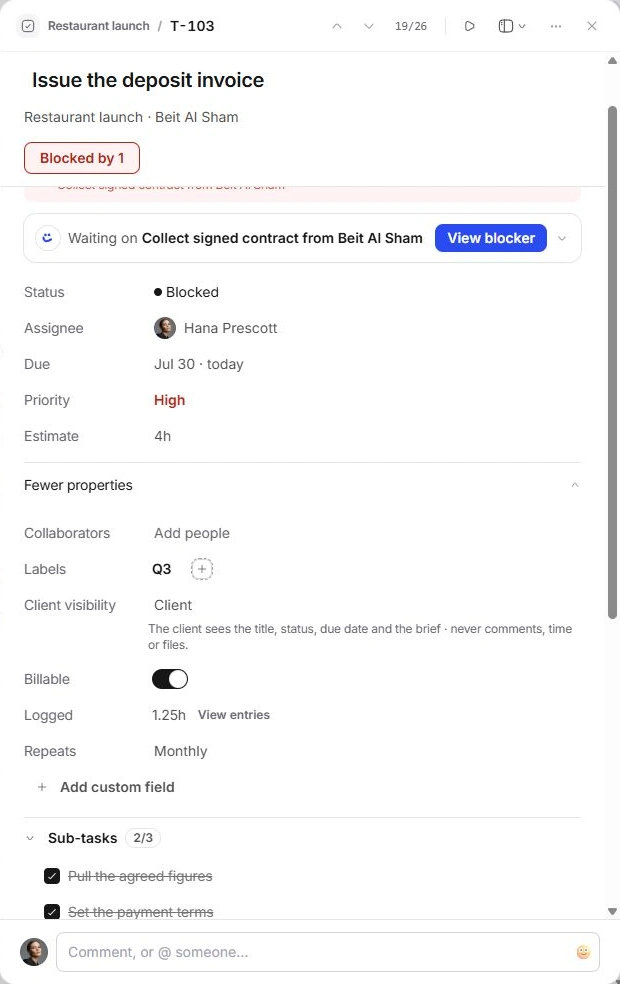
The inspector also offers Add custom field under More properties.
- Name and configure the field.
Choose the field type and, for choice fields, its choices. Use a name that the team can understand without an explanation.
- Create the field.
Check it in the property list and set a value on a sample task.
- Decide whether it belongs in List.
Show or hide the column in Display. Hiding it does not delete its values.
Manage labels and visibility
The Labels control in More properties lets you assign and manage task labels. Labels help describe work across statuses; they do not replace the stage that tells the team what happens next.
Display choices belong to a view. Status definitions and property definitions describe the module’s work. Confirm which scope you intend before changing a shared workflow.
Avoid unintended workflow changes
- Test the name and meaning on one task before relying on a new stage.
- Review existing records before removing or redefining a field or stage.
- Use the editor’s own warnings and recovery actions; do not infer that a hidden column has been deleted.
- If configuration is unavailable to you, ask the workspace owner to check the available controls and plan.
Need a clarification? Tell us what you were trying to do below.
Was this article helpful?
Need help with your workspace?
A support request lets the team reply to you directly.
Get help with this article