
Set booking availability
Control when a booking page can offer times and understand why a slot is unavailable.
On this page
Choose available days and hours
- Open the page’s Availability section.
These are that page’s rules, not a change to every page in the studio.
- Enable the days you accept bookings.
Choose the offered hours for each working day. Leave a day off if the page should not offer it.
- Add a date exception when needed.
Use Days off and other hours to choose a date and set its exception. Remove the exception to restore the usual hours.
- Review the visitor preview.
Pick several dates, including an exception, to verify that the intended hours remain available.
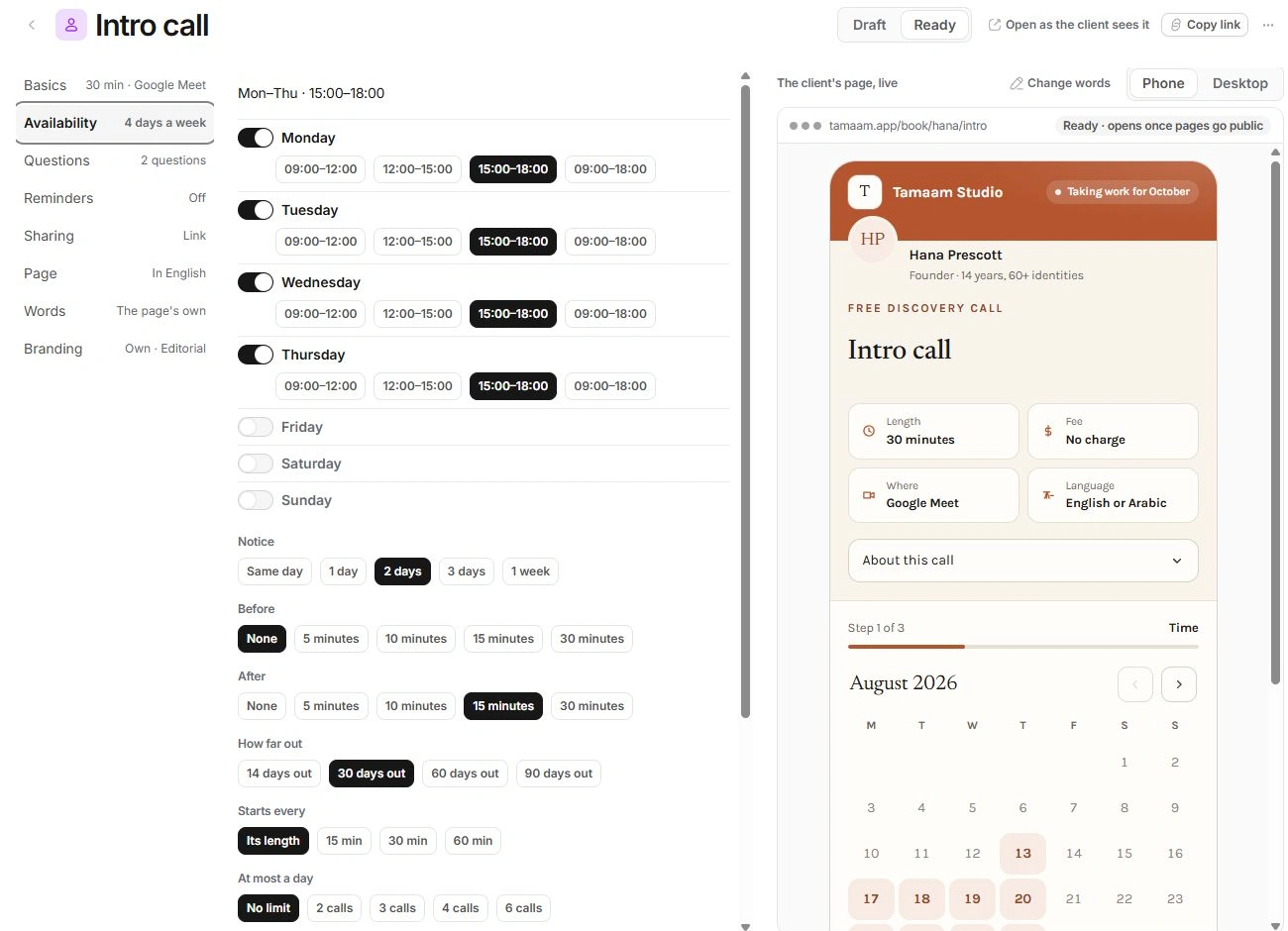
Set spacing and limits
| Action or setting | Action and destination | What to check |
|---|---|---|
| Notice | Availability → Notice | Minimum time before a client can book. |
| Before and After | Availability → the buffer controls | Space reserved around a booked call. |
| How far out | Availability → How far out | The future period offered to visitors. |
| Starts every | Availability → Starts every | The interval between offered start times; Its length uses the meeting duration. |
| At most a day | Availability → At most a day | A limit on the number of calls, or No limit. |
Choose the busy time to respect
Busy time it checks lists calendar sources that should prevent an offer. The page always checks its own bookings and those of other booking pages. Calendar focus blocks also affect the slots it can offer.
Check that the relevant calendar connection is available before relying on its busy periods.
For Round-robin, availability depends on which host can take the call. Everyone together needs a time that works for all selected hosts. Check the host mode before diagnosing a slot.
Find why a time is missing
- Check day hours, date overrides and the visitor’s time zone.
- Check duration and buffers: a short gap may not fit the full call.
- Check notice, future window, start interval and daily limit.
- Check busy calendars and other page bookings. Do not remove a legitimate busy event just to expose a slot.
Need a clarification? Tell us what you were trying to do below.
Was this article helpful?
Need help with your workspace?
A support request lets the team reply to you directly.
Get help with this article