
Connect the shared mailbox
Review the workspace mailbox’s source and scope before connecting it in Inbox.
On this page
Open Inbox settings
Open the mailbox or connection controls in Inbox settings, also reachable through Settings → Modules → Inbox. Check the workspace’s current mailbox before starting another connection.
Choose the source
Open the mailbox connection flow. In Source, choose Gmail, Outlook or another supported mailbox and confirm the intended company address. The workspace uses its shared mailbox; teammates’ client-mail access is managed separately.
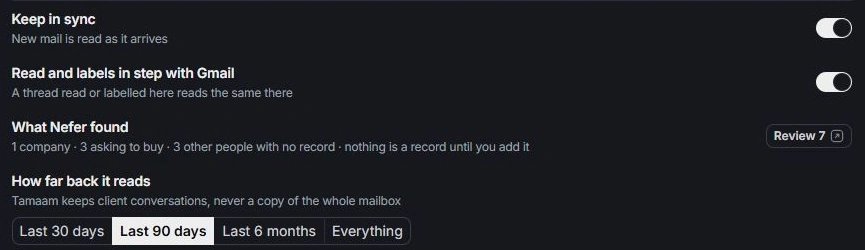
Review Scope
Choose how far back the reading should go and review read, send and synchronization permissions. Check whether read state and labels should stay in step with the mailbox. Cancel if the account or scope is wrong.
Check connection and access
After completing the appropriate connection, review its status in Inbox and Settings → Integrations. Check client-mail access in Members for teammates who need the mailbox. If attention is required, inspect the visible connection explanation before reconnecting.
Need a clarification? Tell us what you were trying to do below.
Was this article helpful?
Need help with your workspace?
A support request lets the team reply to you directly.
Get help with this article