
Filter, sort and group tasks
Build a useful work set, adjust its order and understand why a task moves or disappears.
On this page
Narrow the work
- Choose the sidebar work set.
Start with All tasks unless you deliberately need My tasks, Today or another shared view.
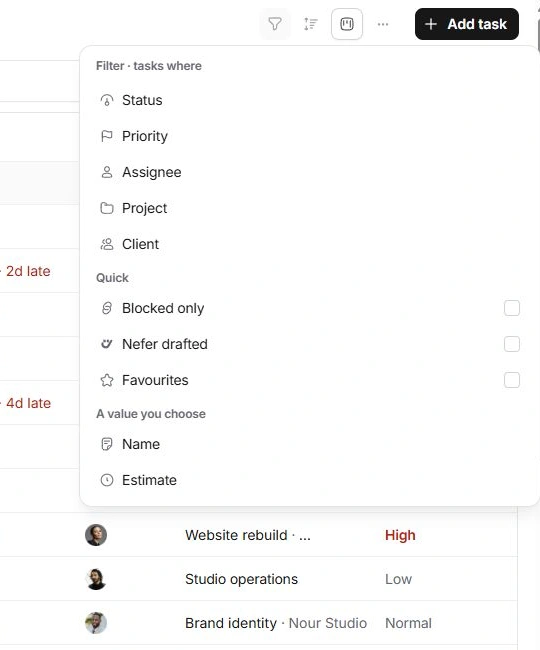
- Open Filter.
Use Status, Priority, Assignee, Project or Client to narrow by known values. Quick switches include Blocked only, Nefer drafted and Favourites.
- Add a condition when needed.
The condition builder includes fields such as Name and Estimate. Choose the comparison and value rather than putting every constraint into search.
- Read the applied filters.
Remove an individual chip or clear filters to widen the result again. Combining constraints can legitimately leave no matches.
Order and organise the result
Groups can be collapsed. Show empty groups in Display is useful when you need to see an available destination before adding or moving work.
| Action or setting | Action and destination | What to check |
|---|---|---|
| Sort | Toolbar → Sort | Choose the property and direction. A sort changes order, not task values. |
| Group | Toolbar → Group | Choose Status, Due, Project, Assignee, Priority or no grouping. Groups explain where each row sits. |
| Search | Top bar → Search tasks | Find matching task text. Clear the query before assuming a record is missing. |
Separate data from display
Open Display and select to choose density, visible columns, wrapped titles, Show done and Sub-tasks presentation. Drag visible property choices to reorder them. Resize a List column using its resize handle.
A task can be excluded by the sidebar work set, a filter, search, Show done or the date range of a layout. Turning off a column only hides that property; it does not remove the underlying value.
Keep or recover the view
Use Save this view beside My views when the combination is useful. Give it a recognisable name and choose whether to share it with the team.
When results are unexpected, clear search and filters, expand groups and return to List. Reapply one constraint at a time to identify which rule excluded the task.
Need a clarification? Tell us what you were trying to do below.
Was this article helpful?
Need help with your workspace?
A support request lets the team reply to you directly.
Get help with this article