
A teammate cannot access a module
Check membership, role, mail access and record context before requesting a permission change.
On this page
Confirm the account and workspace
Ask the teammate to check the workspace name and signed-in account. An accepted invitation for one address does not automatically apply to another account.
Review Members and Roles
An owner should open Settings → Members, inspect the person’s membership state and read the role description. Compare the module they need with the work that role supports.
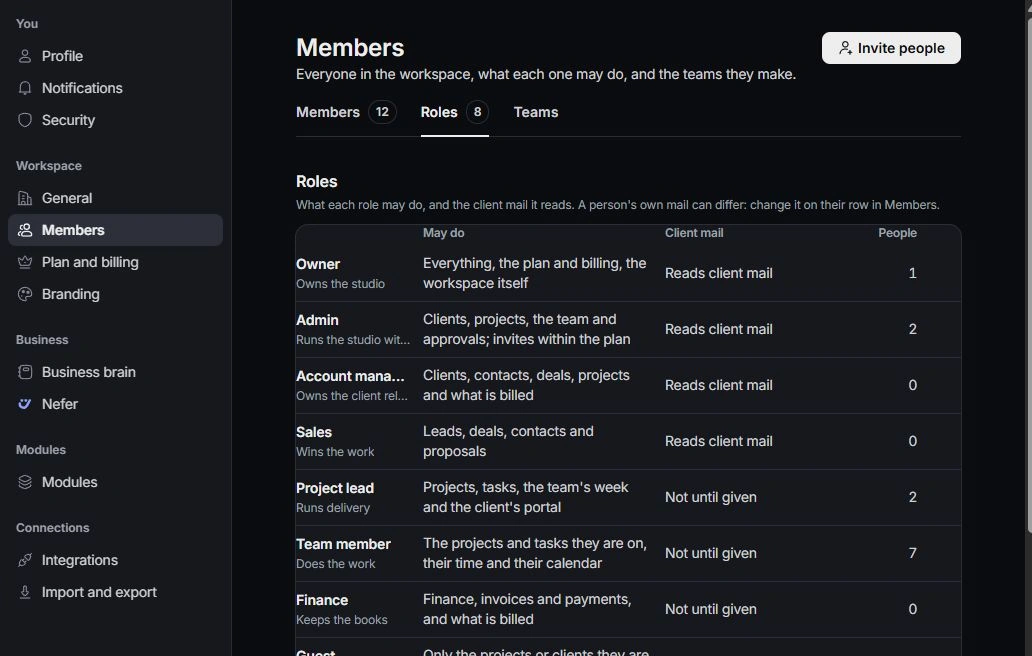
Check assignments and client mail
Review relevant project or record ownership and the view’s filters. For Inbox, check client-mail access separately from role. A module that opens but has an empty filtered view is a different problem from an access block.
Use the smallest appropriate correction
Correct the invitation, role or assignment required for the work. Have the teammate reopen the intended destination and verify it. If the block remains, send support the route, visible error and expected access without passwords, codes or private client content.
Need a clarification? Tell us what you were trying to do below.
Was this article helpful?
Need help with your workspace?
A support request lets the team reply to you directly.
Get help with this article