
Set up the project team
Choose responsible owners, add contributors and check capacity before assigning work.
On this page
Add people to the project
- Open the team controls.
Choose the faces beside the project title to read the roster, or use Add people to the project to add someone.
- Choose an existing teammate.
Review their available week and add the appropriate person. Use the invitation flow only when they are not already in the workspace.
- Check responsibility.
Owners in Project settings identify who answers for the engagement. Task assignees identify who performs individual work.
Read the whole week
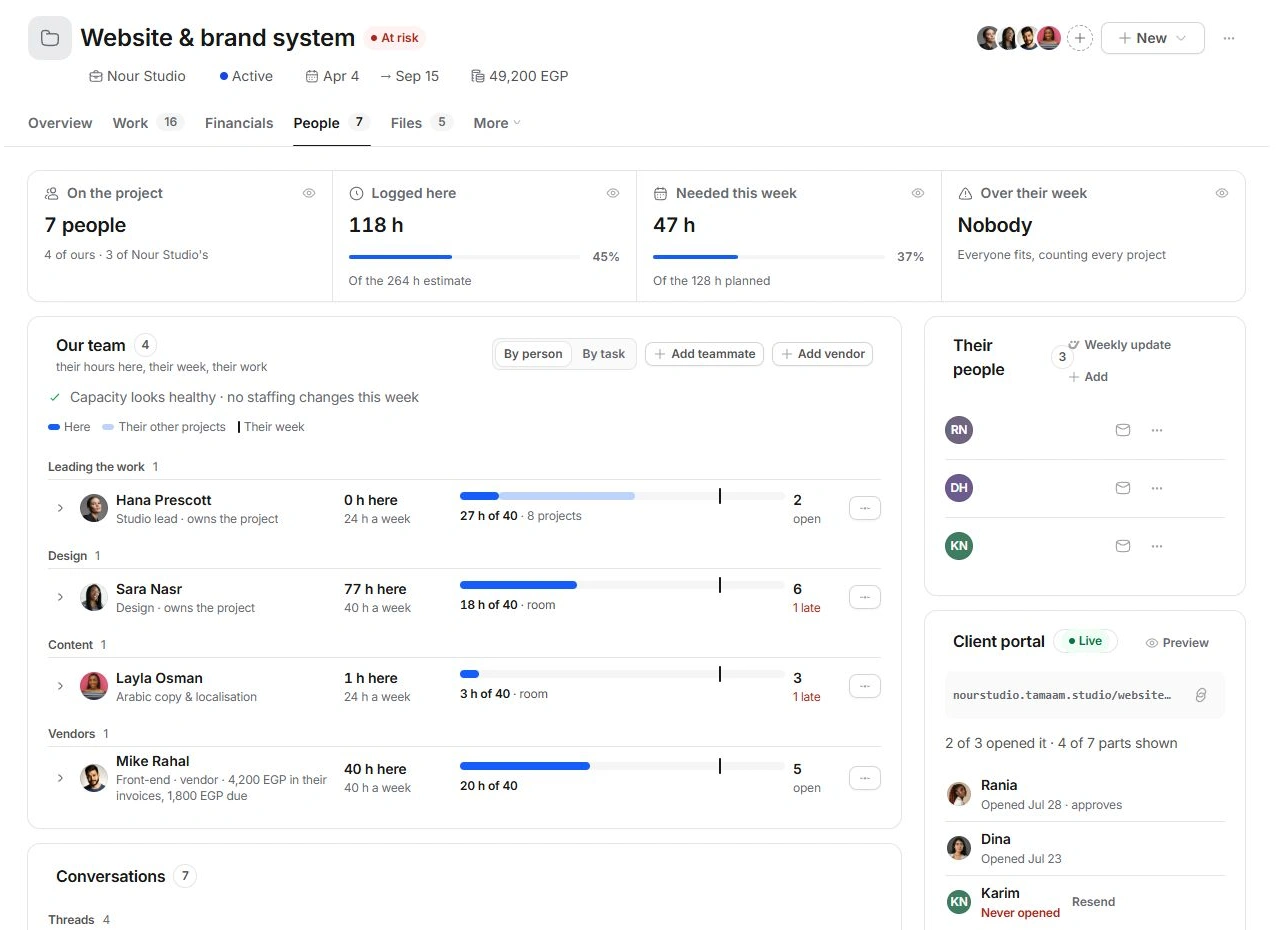
Open People. Our team shows logged time here, planned work and the person's week across other projects. Over their week includes work beyond this project. Someone with few hours here can still be overloaded elsewhere.
Move work deliberately
Use By person to review who holds the work and By task to inspect its distribution. Expand a person to read their tasks before using Move. Check the receiving teammate's total week, the task's estimate and its due date together.
When a person cannot be removed
An owner or someone with open work may need responsibility reassigned first. Move their unfinished tasks and review Owners before removing them. Client contacts belong under Their people; adding a teammate does not automatically grant a client portal invitation.
Need a clarification? Tell us what you were trying to do below.
Was this article helpful?
Need help with your workspace?
A support request lets the team reply to you directly.
Get help with this article