
Make a client dormant or active
Pause a commercial relationship while preserving its history and related work.
On this page
Understand what dormancy changes
Mark dormant retains the client account but clears its fee and next invoice. Read open work and unpaid invoices first. Dormancy is a relationship decision, not a way to mark an unpaid balance as settled.
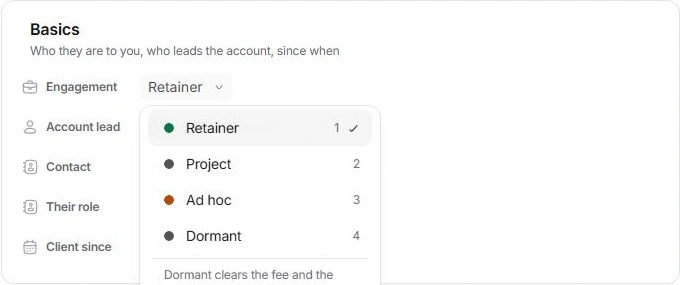
Change the engagement deliberately
- Open Client settings → Administration.
Read the account name and current commercial details.
- Choose Mark dormant.
Review any confirmation and the effect on fee and next invoice.
- Find it under More → Dormant.
Its history remains available.
- To resume, choose a live Engagement in Client settings.
Review the fee, rate and billing schedule again; do not assume the values cleared by dormancy are restored.
Distinguish deletion from dormancy
Delete client is refused while the account owes money. When eligible, deletion asks for confirmation and removes the client record and its history, while projects, deals and invoices stay in their owning modules. Use dormancy when the relationship may resume.
Correct an accidental change
Use Undo when offered immediately after the action. Otherwise inspect the account and restore the intended engagement and commercial fields from the agreement. Review project dates and outstanding money separately.
Need a clarification? Tell us what you were trying to do below.
Was this article helpful?
Need help with your workspace?
A support request lets the team reply to you directly.
Get help with this article