
Set an account lead and team
Keep relationship responsibility distinct from the people delivering individual projects.
On this page
Choose who answers for the account
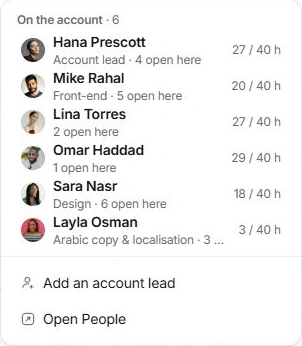
- Open the account-team faces.
Read the roster, account leads and each person’s week.
- Choose Add an account lead.
Select a workspace teammate. Client settings → Account lead and People → Add a lead reach the same responsibility.
- Keep at least one lead.
Add the replacement before removing the previous sole lead. Review the names in the account header afterward.
Understand the wider account team
People → Account team includes leads and people working on the client’s live projects. Their workload is the week across every project, not just hours for this client. Use the project team and task assignee controls when the change concerns delivery rather than account ownership.
Make a useful handoff
Read Needs you, upcoming commitments, open tasks, outstanding invoices and the account brief before changing responsibility. Leave the team’s context in Comments and identify the next client-facing action. Changing a lead does not by itself send a message to the client.
If someone is absent or overloaded
Check whether they lead the account or belong to an associated live project. Inspect their other commitments before moving tasks. Ask a workspace owner to review membership or access if the expected teammate is unavailable.
Need a clarification? Tell us what you were trying to do below.
Was this article helpful?
Need help with your workspace?
A support request lets the team reply to you directly.
Get help with this article