
Create a task
Create work from Add task or an inline group row, then check responsibility, dates and context.
On this page
Start from Add task
- Choose Add task in the toolbar.
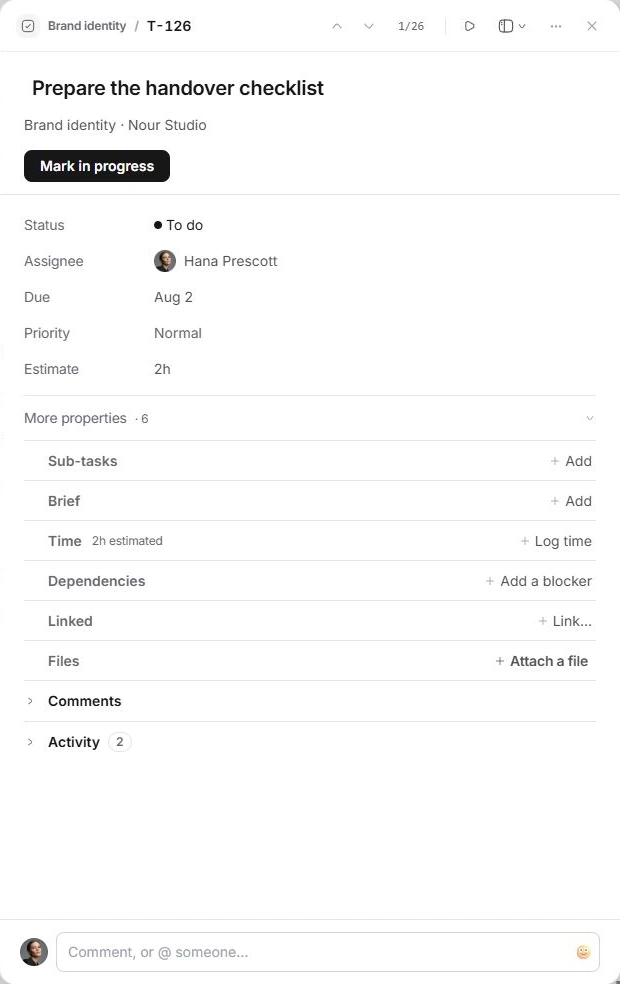
A new task opens directly in the inspector with its title ready to edit. There is no separate multi-step creation wizard.
- Name the action.
Enter a specific title, such as Prepare the client handover. Confirm the title before closing the inspector.
- Check the defaults.
Review Project and Client below the title, then Assignee, Due, Priority and Estimate. A new task can inherit context; do not assume that the first project or default date is the one you intended.
- Add the working context.
Use Brief for instructions, Sub-tasks for small checklist items, and Dependencies when another task must finish first.
Create several tasks without leaving the list
The group supplies its own property. For example, adding inside a status group starts the task in that status. Explicit recognised values can supply other properties. Inspect the chips rather than relying on the wording alone.
- Find the right group.
Use List and locate the status, project or assignee group where the work belongs.
- Choose New task in that group.
Type the task title in the inline composer. Read the recognised date, person, project and priority chips before confirming.
- Press Enter.
The task is added at the foot of that group and the composer stays available for the next task. Open the new row when you need more detail.
Check the result
Look for the new task in the current group or open it from search. A filter may hide a newly created task once its properties no longer match the view. Opening All tasks is safer than creating a second copy.
If the task was created by mistake, use More → Delete task in its inspector and use the Undo action if you need it back.
Need a clarification? Tell us what you were trying to do below.
Was this article helpful?
Need help with your workspace?
A support request lets the team reply to you directly.
Get help with this article