
Link records together
Connect related work so teammates can follow its context from either record.
On this page
Open the record’s Linked section
Select the record and expand Linked. Read the existing relationships first so you do not add a second link to work already connected.
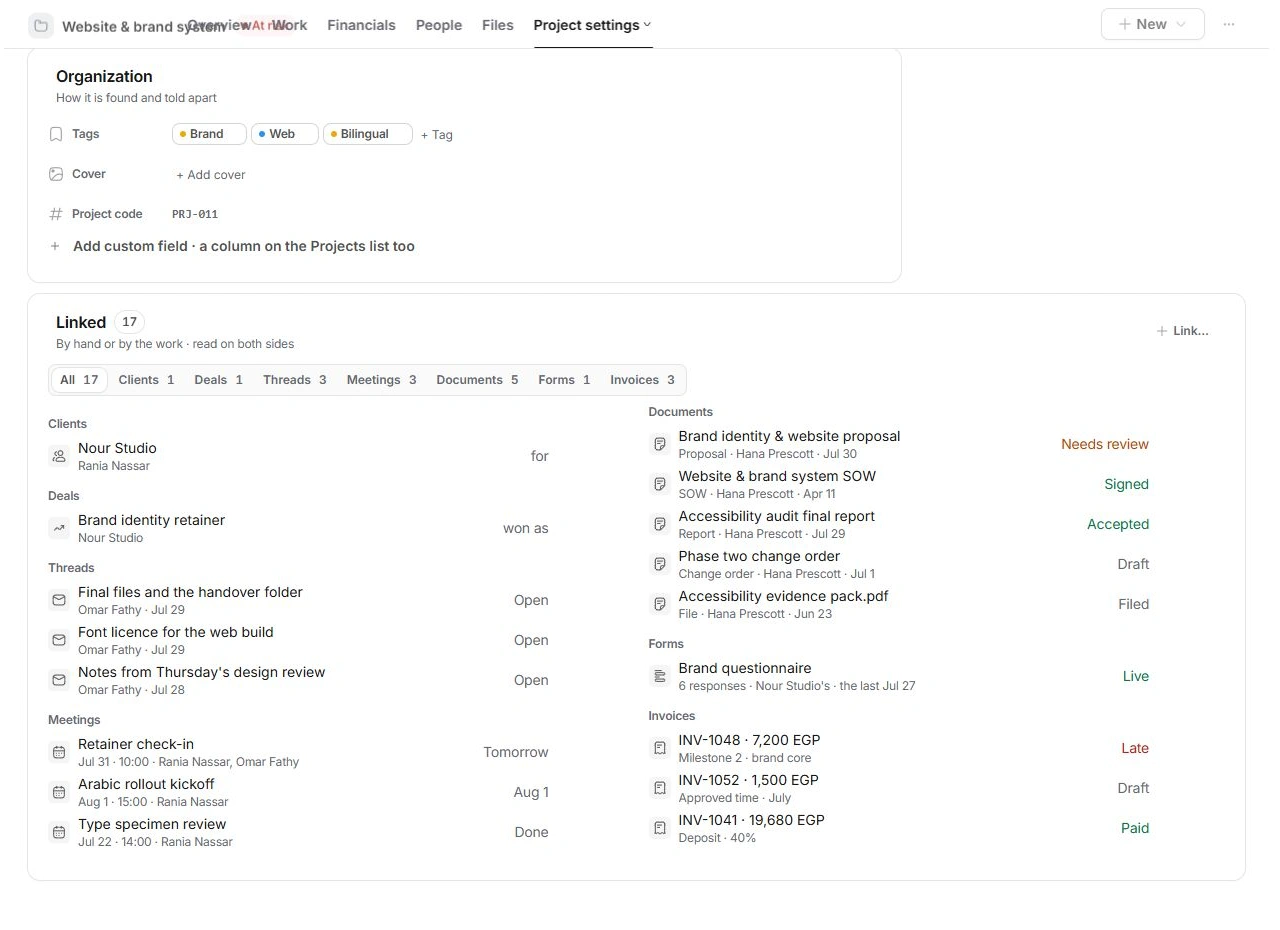
Choose Link…
Open Link… and search for the related record. Check its type, name and context before selecting it. A matching company name can appear as a lead, client and project.
Inspect the resulting relationship
Read the new item in Linked and open it. Confirm it is the intended record and that its context points back where appropriate. Use the specialized Client, Contact or Project field for that primary relationship rather than relying only on a similarly named note.
Remove a mistaken relationship
Use the item’s Unlink control when the association is wrong. Unlinking a relationship is different from deleting either record. Recheck both records, then select the correct relationship.
Need a clarification? Tell us what you were trying to do below.
Was this article helpful?
Need help with your workspace?
A support request lets the team reply to you directly.
Get help with this article