
Configure booking page content and brand
Edit visitor-facing copy, language and appearance while keeping the meeting offer accurate.
On this page
Review Page and Words
Open the page editor’s Page section for the visitor-facing information and language. Read the title, host introduction and description as a client would. The wording should explain the call, what to bring and what happens next.
Words lets you rewrite labels in the Time, Details and Confirmed steps. A renamed label should still describe the underlying action. Use the preview to check length, clarity and the chosen language.
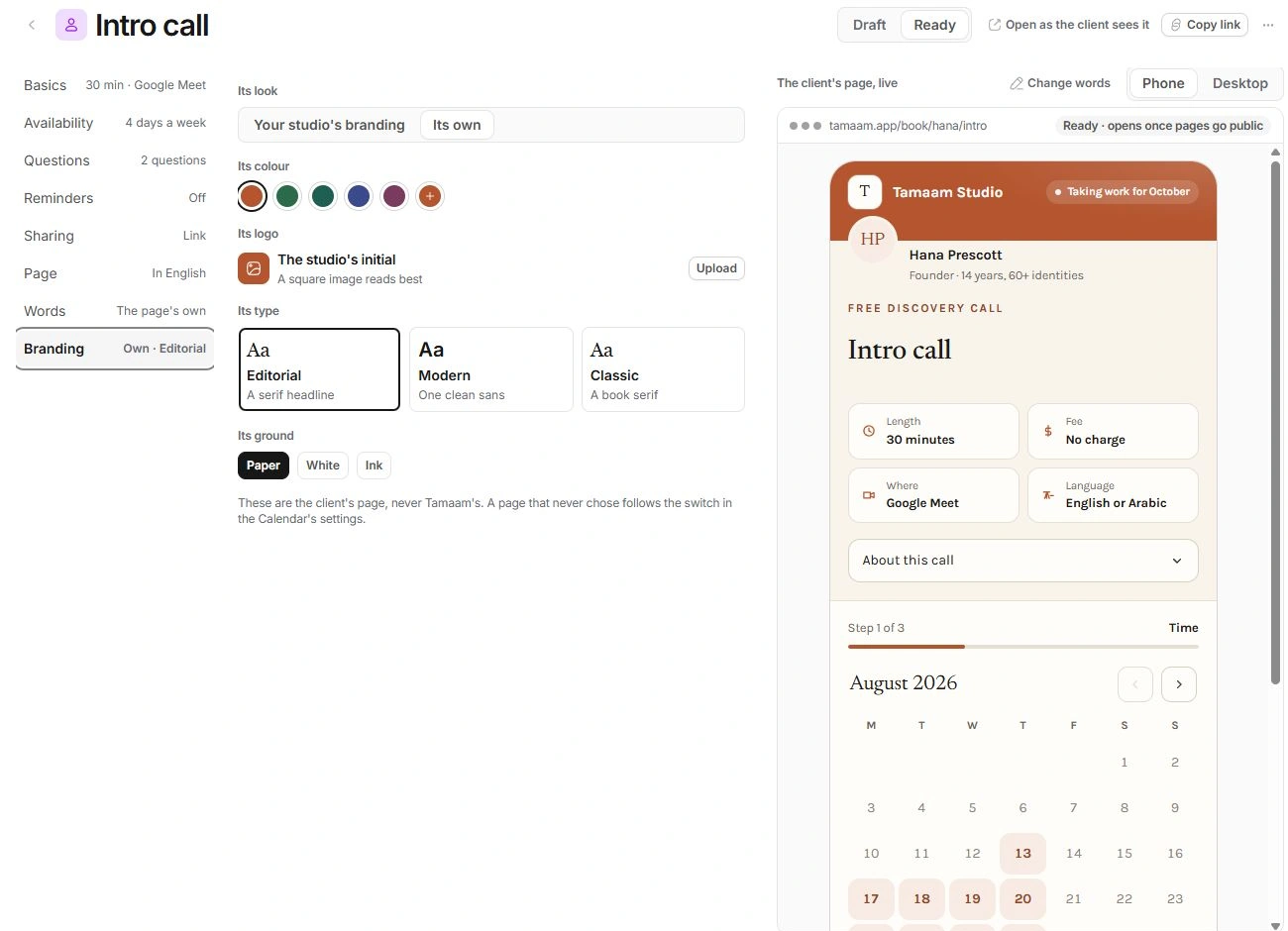
Choose Branding
- Choose the brand source.
Select Your studio’s branding to follow the shared default or Its own for a page-specific look.
- Review the colour and logo.
Use the page’s colour and logo controls. A square image is recommended by the editor. Check how it reads at phone size.
- Choose type and ground.
The available type choices are Editorial, Modern and Classic; ground choices include Paper, White and Ink.
- Read the whole page.
Check contrast, long titles and action labels in the visitor preview.
Understand what changes
Branding changes the client’s booking page; it does not recolour the Tamaam workspace. Calendar settings → Booking pages supplies the studio default that an individual page can follow.
A page-specific choice and the studio’s identity are different scopes. Confirm which you intend before replacing a logo or changing a colour used on other booking pages.
Check both preview sizes
- Read the title, meeting length, place and host introduction on Phone and Desktop.
- Check long questions and confirmation labels in the selected language.
- Keep the actual meeting offer aligned with the copy: free pricing is not a paid consultation flow.
- Open as the client sees it before preparing sharing material.
Need a clarification? Tell us what you were trying to do below.
Was this article helpful?
Need help with your workspace?
A support request lets the team reply to you directly.
Get help with this article