
Write and send a reply
Choose the audience, prepare the message and review the sending options before confirming.
On this page
Choose Reply, Reply all or Forward
Use Reply to answer the sender, Reply all when everyone in the message belongs in the response, or Forward to send the content to a different audience. These choices appear on each message. Check the recipient line and sending address rather than assuming the thread title identifies the audience.
A shared inbox can supply its own sending address. Moving a conversation between inboxes can affect that identity, so review it again after a move.
Prepare the response
- Open Reply in the composer.
Use the Reply tab for the external response. Internal note is a different audience.
- Write the answer.
Use formatting, links and lists where they clarify the response. Templates and quick replies fill the draft for review.
- Check attachments and signature.
Confirm the intended files finished preparing and check the signature. Remove irrelevant files before continuing.
- Review the whole message.
Confirm names, dates, commitments, recipients and any quoted content. Resolve any stale-draft or review notice before sending.

Choose what happens after the reply
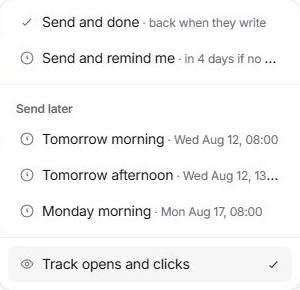
Send confirms the current message. The adjacent Send options menu offers Send and done, Send and remind me, scheduled times and Track opens and clicks. Send and done clears completed work from the active queue; Send and remind me prepares a follow-up if there is no reply.
If a review has been requested, the composer explains who is holding the decision. Check Request and review a reply for the approval path. A disabled Send can also mean an empty message, an attachment still preparing or an unavailable sending identity.
Check the result
Read the confirmation and the resulting message in the thread. Scheduled work belongs in Scheduled until its chosen time. If there is an error, keep the draft, check the mailbox connection and retry only after confirming that the message was not already added.
Need a clarification? Tell us what you were trying to do below.
Was this article helpful?
Need help with your workspace?
A support request lets the team reply to you directly.
Get help with this article