
Log time against a task
Start and stop a timer or add time manually, then check the recorded effort and billable setting.
On this page
Track time while working
The timer is a shared working session, not a reason to run several clocks for the same period. Completed tasks may ask you to reopen before tracking more time.
- Open the task.
Confirm the record before starting a timer.
- Choose Start timer.
Use the inspector’s timer action. The top bar can also start a timer on a selected task.
- Stop when the work ends.
Use Stop timer and check the recorded time against the task’s Time section.
- Resolve an unattached timer.
If you began without a task, attach the stopped time to the correct record or discard it through the offered control.
Log time manually
- Expand Time and choose Log time.
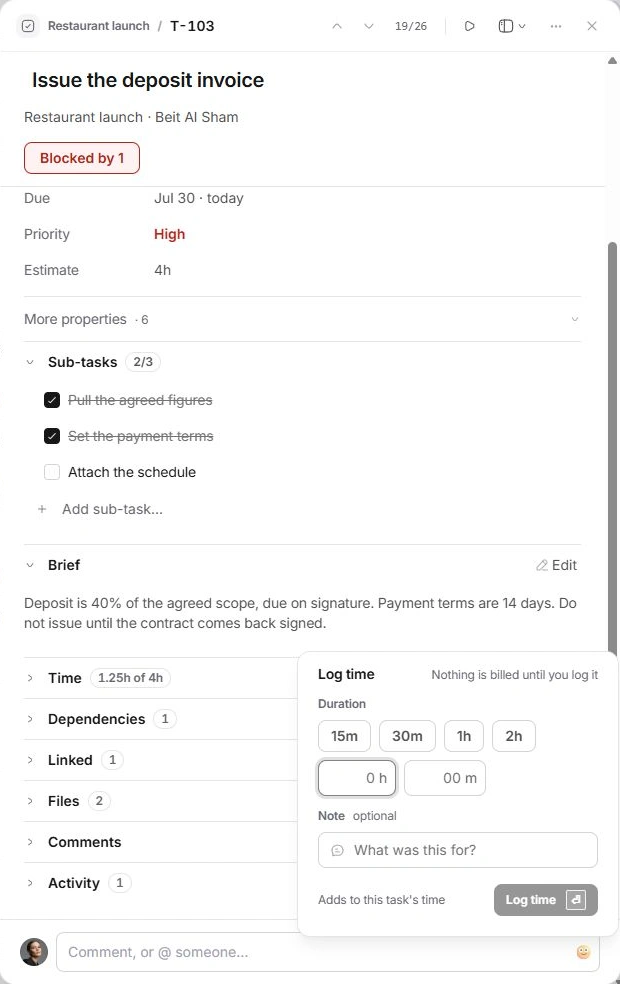
The panel shows duration presets and Hours and Minutes fields.
- Enter the elapsed duration.
Use a preset or enter a positive duration. Add What was this for? when a note would make the entry understandable.
- Confirm Log time.
Check the new entry and the task’s Logged total. Avoid recording the same period both manually and with the timer.
Compare planned and actual effort
Estimate describes planned hours. Logged describes time already recorded. The Time section compares the two and shows individual entries when available.
More properties → Billable controls the task’s billing classification. A billable flag or logged entry does not mean an invoice has been approved or sent. Follow the Finance review process for billing decisions.
Correct an unexpected total
- Open the entries rather than judging only the summary.
- Check the task, duration and whether a timer is still running.
- Use Undo on a new entry if it was accidental, or the available entry controls to correct it.
- Include the task ID and the mistaken duration when asking support about a mismatch.
Need a clarification? Tell us what you were trying to do below.
Was this article helpful?
Need help with your workspace?
A support request lets the team reply to you directly.
Get help with this article