
Manage Spam, Trash and kept-out mail
Recover misplaced conversations and distinguish routine queue cleanup from permanent deletion.
On this page
Choose the right destination
Done is completed work, Snoozed is work set aside for a return condition, Spam is unwanted mail and Trash is removed conversation history. Kept out separates mail such as newsletters and notifications from the working queue.
Use More and the relevant inbox’s folders to reach these destinations. Check the subject and source before moving anything back.
Recover a misplaced conversation
- Open the appropriate folder.
Look in Done, Spam, Trash or the kept-out review.
- Read the existing record.
Confirm it is the conversation you need, including the latest message and linked work.
- Use its recovery action.
Done offers Back to the inbox, Spam offers Not spam, and Trash offers Restore. Kept-out mail offers its own way into the Inbox.
- Check the returned conversation.
Review the shared inbox, owner and reply state. Recovery may reveal work that still needs assignment.
Move mail out of the working queue
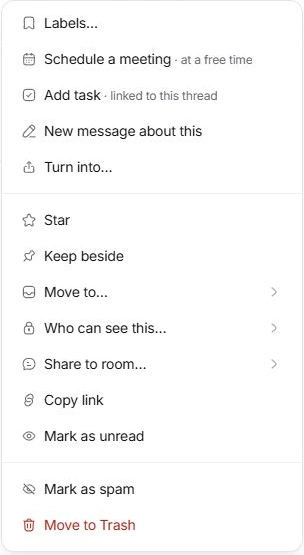
More actions offers Mark as spam or Move to Trash where appropriate. Read the action label before confirming a broader selection. Marking a useful conversation Done preserves it without treating it as unwanted mail.
Undo is useful after a mistaken move. If the conversation is no longer in the active list, look in its destination folder before assuming it was lost.
Use permanent deletion only deliberately
Trash offers Delete forever with a separate confirmation. It removes the conversation with its associated notes and drafts for everyone who could access it. Read the named thread or selection count carefully before proceeding.
Restore is the safer recovery when you are still investigating. Contact support with a subject and approximate date if expected mail cannot be found; avoid including the full private message.
Need a clarification? Tell us what you were trying to do below.
Was this article helpful?
Need help with your workspace?
A support request lets the team reply to you directly.
Get help with this article