
Triage several conversations at once
Select a controlled set of threads and apply one bulk change.
On this page
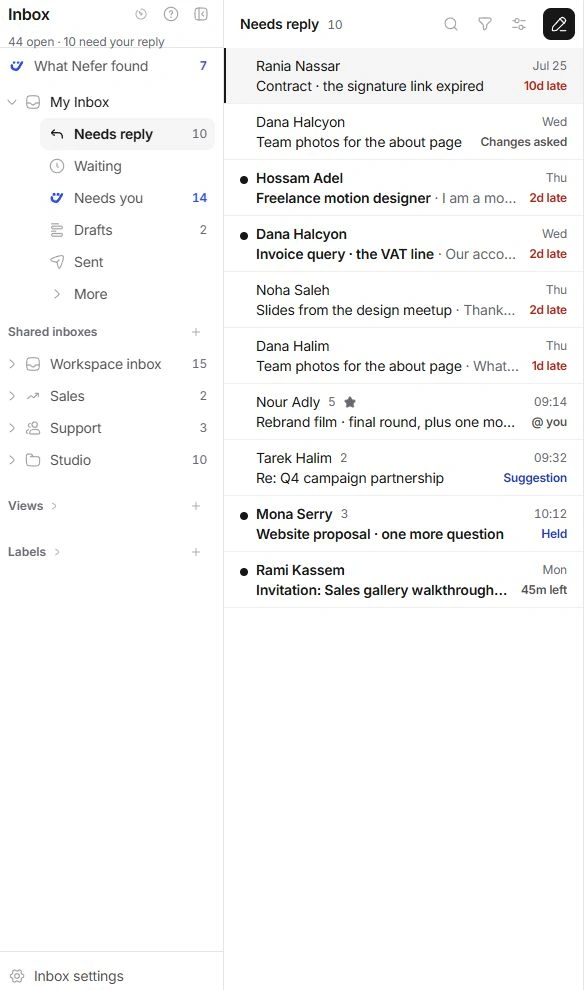
Select the intended conversations
Use the row selection control or x when a conversation is focused and you are not typing. Select additional rows deliberately and read the selection count. The open reader can show a different record from the selected set, so the count is the starting point for a bulk action.
Choose one change for the set
- Review the selected rows.
Confirm that the same action is appropriate for every conversation.
- Use the selection bar.
Assignment, labels and mailbox actions act on the selected set. Some folders offer different recovery actions.
- Check the destination or return condition.
For a bulk move or snooze, read the chosen inbox or date before confirming.
- Read the confirmation.
The resulting list can shrink when changed conversations no longer match the folder.

Correct a broad change promptly
Use Undo where offered and verify a sample of the affected conversations. Clearing a selection does not undo its earlier changes. Return to the appropriate inbox or folder to find threads that left the current queue.
Leave selection mode when finished
Use Clear or Escape to release the selected rows. Check the bar has disappeared before continuing individual triage. For permanent deletion, review the separate confirmation carefully; it affects every selected thread and its associated content.
Need a clarification? Tell us what you were trying to do below.
Was this article helpful?
Need help with your workspace?
A support request lets the team reply to you directly.
Get help with this article