
Navigate the Forms workspace
Find forms, choose the right editor tab and distinguish working changes from the published version.
On this page
Find the form you need
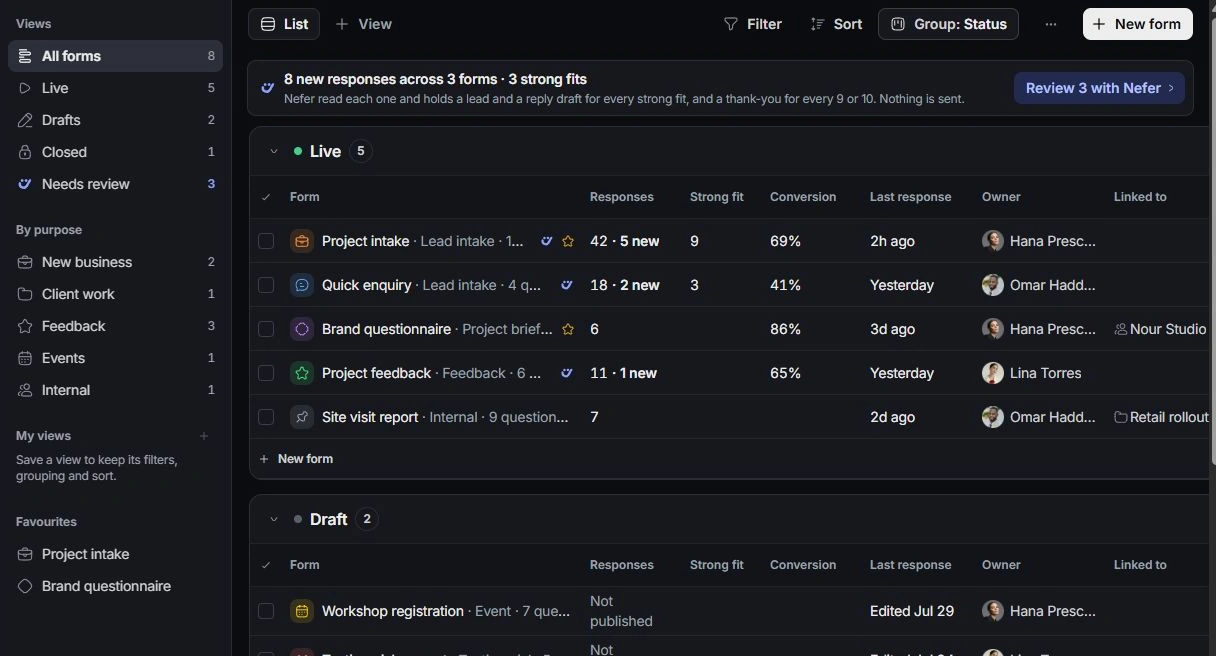
Open Forms and choose the relevant view. Read the form’s purpose, owner, state and response counts before opening it. Draft, live and closed forms have different next actions; a closed form can still have responses to review.
Choose the page for your action
Build contains the outline, paper and selection inspector. Responses holds submissions and review actions. Analytics explains visits, completion and drop-off. Share holds links, QR codes, embeds and personal invitations. Settings controls intake, qualification, routing and protection. A draft opens on Build; a live or closed form normally opens on Responses.
Read completion and drop-off
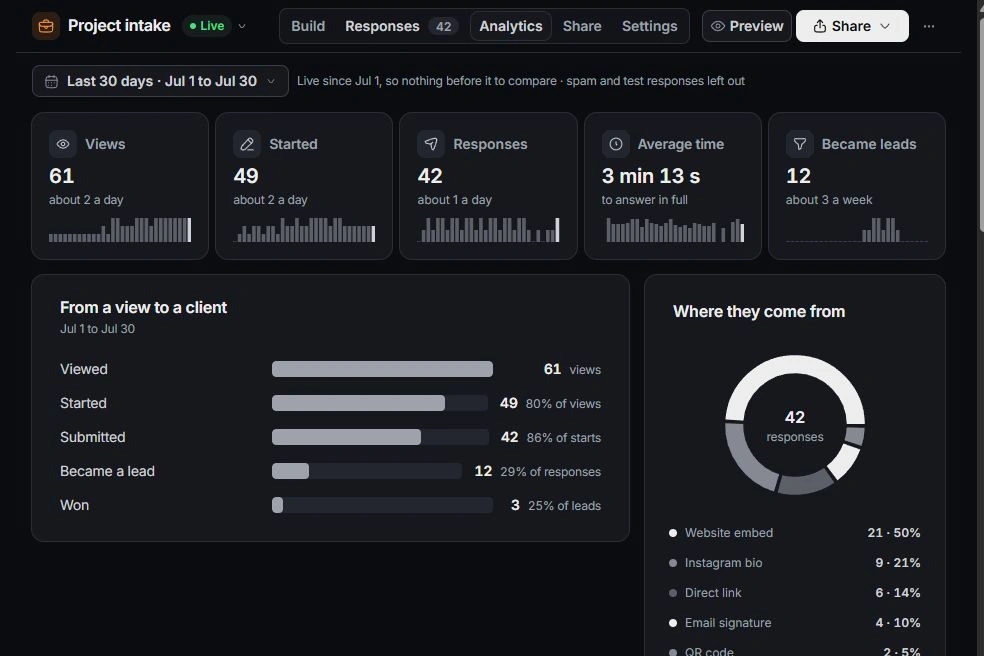
Open Analytics and choose the period. Compare views, starts, submissions and lead conversion. Read each funnel percentage against its preceding step, then use the source breakdown and daily or weekly trend to understand where responses come from. Spam and test responses are excluded from the relevant analysis.
Inspect question drop-off before removing a field. Follow its Build link, review the wording, required state and logic, then preview the revised path. A proposal to improve a question is an unpublished edit until you review and publish it.
Keep working and published content distinct
The editor can contain changes that respondents do not yet see. Read the unpublished-change indicator and use Publish changes after review. Existing responses retain the version answered, so an older response can legitimately use different questions.
If the form seems absent
Clear search and filters, check its state and owner, and inspect any archived or closed view before creating another form. Use the form code when asking support to distinguish similarly named forms.
Need a clarification? Tell us what you were trying to do below.
Was this article helpful?
Need help with your workspace?
A support request lets the team reply to you directly.
Get help with this article