
Preview the form
Check the respondent journey on desktop and phone without treating a test answer as a real enquiry.
On this page
Open Preview
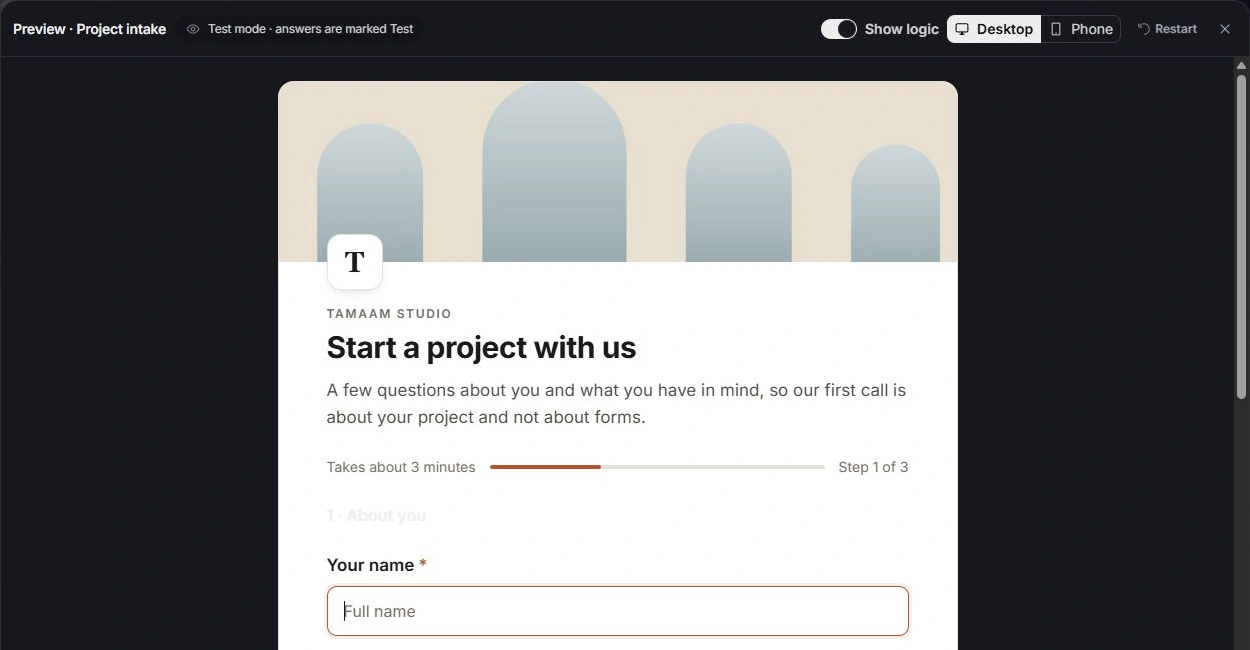
Choose Preview from the form page. Read the welcome, selected language and the current question layout. Use the available device controls to review desktop and phone presentation.
Walk through the full flow
Try a normal submission path and each meaningful conditional branch. Check required errors, option labels, numeric limits, file restrictions, progress and the final ending. Review any offered call or onward link from the ending.
Keep testing separate from incoming work
Preview is for checking the form. When test responses are available in Responses, use the Test view to keep them distinct from actual enquiries. Inspect the response status and source before converting anything into a lead or task.
Return to the owning control
Correct question content, mapping or logic in Build, the presentation in Design and intake behaviour in Settings. Recheck the affected route and review Publish changes for a live form; the preview alone does not release an edit.
Need a clarification? Tell us what you were trying to do below.
Was this article helpful?
Need help with your workspace?
A support request lets the team reply to you directly.
Get help with this article