
A time or due date looks wrong
Check personal time settings, calendar visibility and the record’s own date before changing a deadline.
On this page
Check your time settings
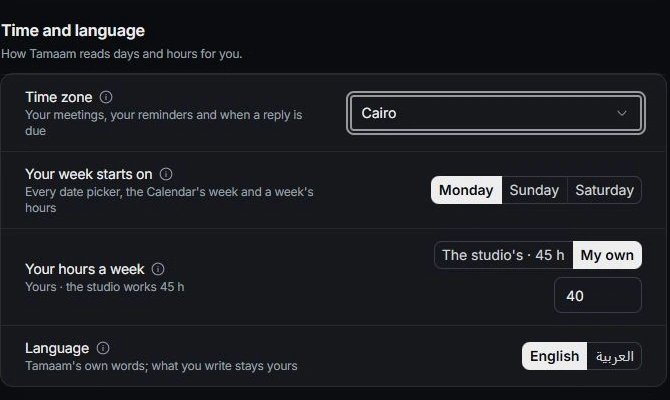
Open Settings → Profile and review Time zone and Your week starts on. Workspace defaults live in General. Compare these settings with the timezone used in the meeting or source conversation.
Check which date you are reading
A task due date, meeting start time, deal close date and invoice due date represent different decisions. Open the owning record and read the actual field rather than changing a similarly named date elsewhere.
Inspect the calendar view
Check the displayed week, selected calendars, all-day state and the event’s start and end. Review repeated-event context before changing a single occurrence or a series.
Correct the source or escalate
Change an incorrect date at its owning record after confirming the intended time. If the display remains inconsistent, report the record identifier, expected date and time zone to support. Crop personal or client details out of any supporting screenshot.
Need a clarification? Tell us what you were trying to do below.
Was this article helpful?
Need help with your workspace?
A support request lets the team reply to you directly.
Get help with this article