
Schedule a message and manage drafts
Keep unfinished writing separate from messages scheduled for a specific time.
On this page
Save and reopen the same draft
Drafts contains unfinished replies and new messages saved before sending. A new-message draft reopens Compose; a reply draft stays with its conversation. Shared-inbox Drafts can show the team’s work, while My Inbox focuses on yours.
Open the existing draft before creating another. Read its author and review state, especially when another teammate has prepared the response.
Choose a sending time
- Finish reviewing the message.
Scheduling still requires the correct audience, sending identity, body and attachments.
- Open Send options or Send later.
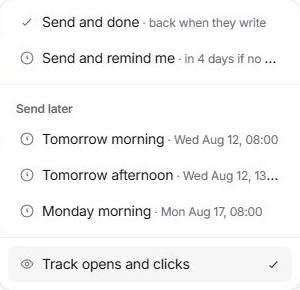
The menu displays preset dates and times, such as Tomorrow morning, Tomorrow afternoon and Monday morning.
- Read the exact date.
Choose the intended preset; do not infer the date from the relative label alone.
- Review Scheduled.
Check the conversation’s scheduled entry and its timing. A scheduled message is different from a conversation snoozed until later.
Change your plan before the chosen time
Open the scheduled item. Use Send now to confirm it immediately, or Cancel to return its text to a draft before editing. Check the draft and scheduled state after the change. If it has already been sent, editing a draft does not recall it.
Delete draft removes unfinished writing, while moving a conversation to Trash affects the whole thread. Check the action label and use Undo where offered.
Choose a reminder for a reply instead
Use Send and remind me when the message should go now and the work should return if there is no response. Snooze controls when a conversation returns to your queue; Send later controls the message’s intended sending time.
Need a clarification? Tell us what you were trying to do below.
Was this article helpful?
Need help with your workspace?
A support request lets the team reply to you directly.
Get help with this article