
Share a project with the client
Review portal access, visible content and client actions before circulating the project link.
On this page
Open Sharing and access
- Open Project settings → Access.
Choose Sharing and access. You can also reach it from People or Files.
- Review the link.
Check whether the portal is live or off. Clients open it with an email code; review Require a password too if your client needs that additional check. Make a new link retires the previous address, so coordinate that change with the people using it.
- Review each person.
Can open and Can approve are separate choices. Review the intended client contacts. When several people can approve, choose One is enough or All must approve to match the agreement.
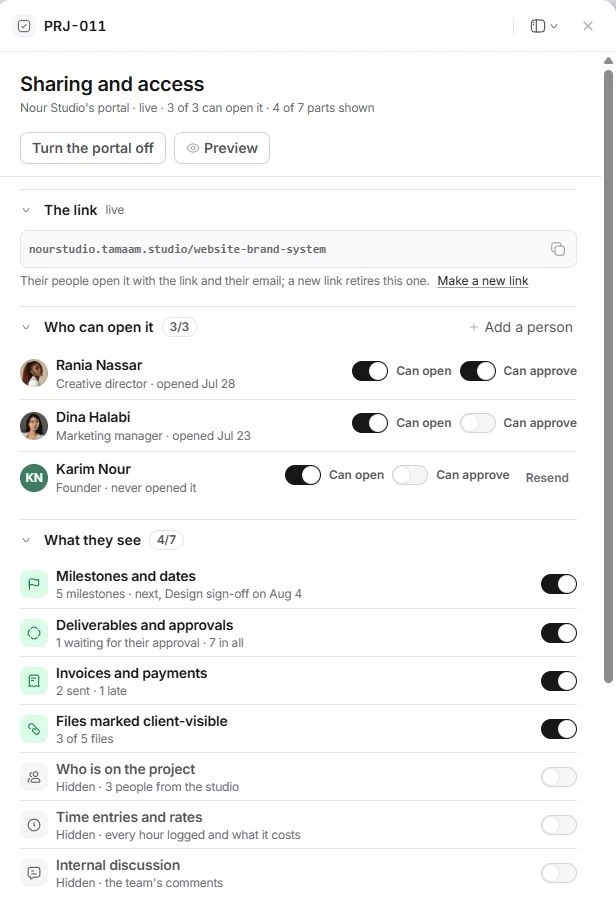
Choose what the client sees
- Milestones and dates, deliverables and approvals, invoices and payments, and client-visible files have separate controls.
- Who is on the project, Time entries and rates, and Internal discussion also have controls. Check these carefully before showing internal information.
- Files retain their own Client or Internal setting. Turning on the Files section does not mean every attachment is suitable for the client.
- What they can do and What they are told are separate from which sections are visible. Review approval, payment, upload, comment, booking and request permissions individually. New tasks can start Internal or Client can see; each task’s own visibility takes precedence. Review the weekly update draft and its automatic-send setting before enabling updates.
Check the client view
Use Preview to open the portal from a client contact’s perspective. Verify pending approvals, dates, invoices and the file list. If no preview opens, add a client contact with an address and check their access. Return to the project to change the underlying work or money.
When access or content is wrong
Check link state, the person's Can open setting, the section visibility and each file's audience. Can approve also depends on the relevant approval action being available. Turn off access or hide the sensitive section when necessary, then check Preview again before sharing the link.
Need a clarification? Tell us what you were trying to do below.
Was this article helpful?
Need help with your workspace?
A support request lets the team reply to you directly.
Get help with this article