
Set required fields and validation
Set required answers and type-specific limits, then test the errors respondents will encounter.
On this page
Set Required on the selected question
In Build, select a question and open Content in the inspector. Use Required for information the team genuinely needs to proceed. Keep an optional follow-up optional when it does not apply to everyone.
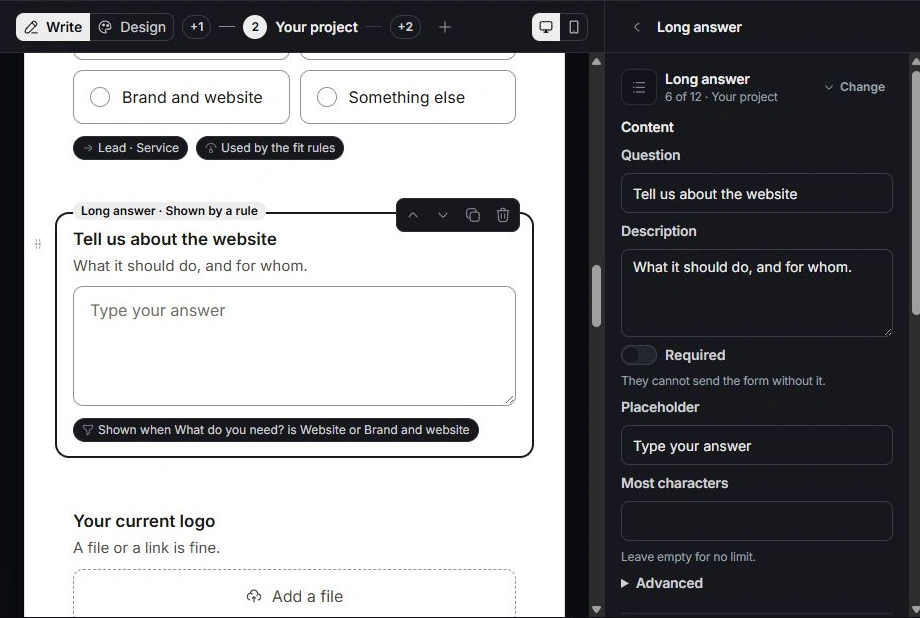
Use the field’s own validation controls
For short or long text, review Most characters. Numeric fields have Lowest and Highest; sliders also have Step, and amounts have Currency. Phone fields have a country code. File fields offer type and size settings. Set limits that reflect the intended answer rather than relying on the label alone.
Test acceptable and invalid answers
Open Preview. Try leaving the required question empty, entering a value outside its limits and correcting the answer. Check both desktop and phone. If a conditional question is hidden, test the branch that reveals it as well.
When validation is surprising
Check the field type, required setting, limits and visibility condition together. A placeholder is an example, not an answer or a validation rule. Review publish checks and repair the question before releasing changes to a live form.
Need a clarification? Tell us what you were trying to do below.
Was this article helpful?
Need help with your workspace?
A support request lets the team reply to you directly.
Get help with this article